
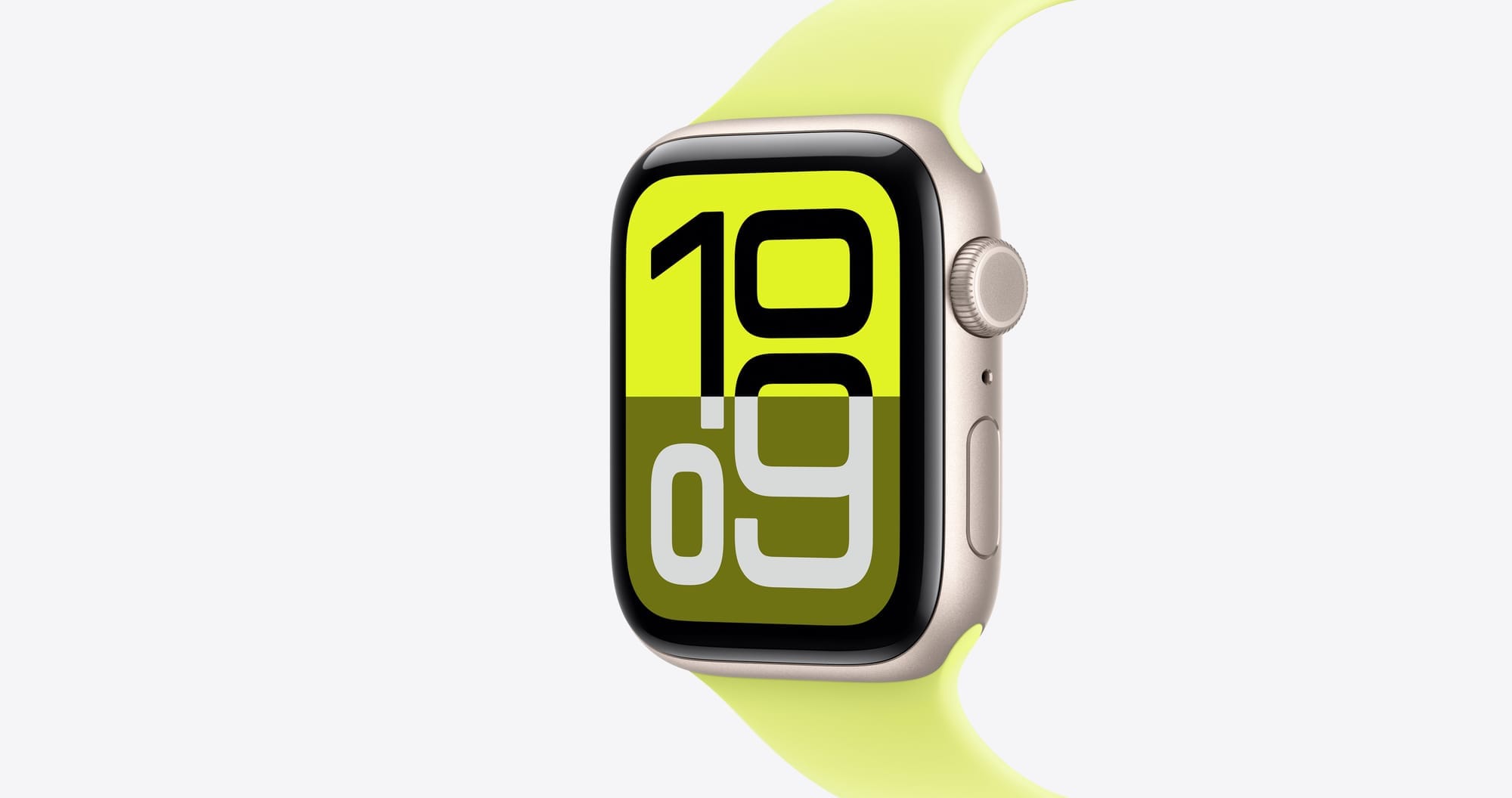

Apple Watch comes loaded with over sixty watch faces in watchOS 26, and most of them accept complications that turn a basic clock into a personal command center. The challenge is that Apple’s default configurations waste complication slots, bury the most useful faces deep in the gallery, and leave the new Liquid Glass designs looking generic out of the box. The difference between a watch face that works for you and one you just tolerate comes down to three choices: which face, which complications, and how you rotate between them throughout your day.
Why Complications Matter More Than the Face Itself
Complications are the small data widgets that sit on your watch face, and they are the single biggest factor in whether your Apple Watch saves you time or wastes it. A face with zero complications is a clock. A face with four well-chosen complications is a dashboard that replaces pulling out your iPhone dozens of times a day. Every time you raise your wrist to check the weather, your next calendar event, your activity rings, or your heart rate, that information should already be on the face staring back at you.
Not every face supports the same number of complication slots. Infograph tops the list at eight, which sounds overwhelming until you realize that each slot is small enough to show just one data point. Modular offers six slots with a large center complication that can display richer data like a full calendar preview or a detailed weather forecast. The new Exactograph face in watchOS 26 supports four corner complications in its Rings layout, while Flow, the other new Liquid Glass addition, supports none at all.
The practical move is to pick your four most-checked pieces of information first, then find a face that fits them. For most people, that combination is weather, calendar, activity, and one wildcard like a timer, heart rate, or HomeKit scene toggle. Once you have those four locked in, the face becomes the frame rather than the focus.
Affiliate disclosure: some links in this article are Amazon Associate links. If you buy through them, Zone of Mac may earn a small commission at no extra cost to you, and we only recommend products that genuinely bring value to your Apple setup.
How to Customize Any Watch Face Directly on Your Wrist
Touch and hold the current watch face until the display shrinks into editing mode. Swipe left or right to browse your existing face collection, or swipe all the way to the right and tap the plus icon to add a new one. The Face Gallery on the watch itself groups faces by collections like New Watch Faces, Data Rich, and Health and Fitness, which saves time compared to scrolling through all sixty-plus options alphabetically.
Once you have selected a face, tap Customize to enter the editing layer. The Digital Crown scrolls through available options for whichever element is highlighted. The first pass usually controls the color or style of the face itself. Swipe left to advance to the complication positions, which appear as highlighted slots around the dial. Tap a slot, rotate the Digital Crown through the available complications, and repeat for each slot. Press the Digital Crown again to confirm and return to the active face.
A small but important detail: complications from third-party apps only appear in the picker after the corresponding app is installed on your iPhone and the watchOS companion has synced. If an app you want to use as a complication is missing from the list, open the Watch app on your iPhone, scroll to the app under Installed on Apple Watch, and verify the toggle is active.
The iPhone Face Gallery Gives You More Control
Open the Apple Watch app on your iPhone and tap Face Gallery at the bottom. This view lets you see the full design of each face before committing, including a preview of how your chosen complications will look on the dial. Tap any face to configure it, choose your complications from categorized lists, and tap Add when satisfied. The face transfers to your watch wirelessly within a few seconds.
The iPhone route is faster for building multiple faces at once. You can set up a fitness face loaded with Activity, Workout, and Heart Rate complications, a work face with Calendar, Mail, and Reminders, and a weekend face with Weather, Music, and a HomeKit scene trigger, then rotate between them with a swipe on the watch. There is no limit to how many faces you can store in your collection.
Join The Inner Circle For Serious Apple Users
Exclusive Apple tips. Free to join.
Check your inbox for a confirmation link.
Something went wrong. Please try again.
The Photos Face Gets a Liquid Glass Upgrade
The Photos watch face in watchOS 26 received one of the most noticeable visual upgrades in the entire update. The time numerals now float over your photos with a translucent Liquid Glass effect that adapts to the colors and brightness of each image. The result is a face that feels like it was designed around each specific photo, rather than just laying numbers on top of a picture.
To get the most out of this face, curate a dedicated album in the Photos app on your iPhone. Landscape shots and close-up portraits tend to work best because the numeral placement avoids the center of the image. High-contrast images with a clear subject look sharper under the Liquid Glass overlay than busy, cluttered compositions. Once your album is ready, select it as the source in the Photos face configuration, and the watch will shuffle through your images each time you raise your wrist.
watchOS 26 also added automatic Featured photo selection. If you enable this option instead of a specific album, the watch pulls from the same curated set that the Photos app highlights on your iPhone, surfacing meaningful moments without manual curation. Four complication slots are available on this face, so you can still track weather, calendar events, and activity without sacrificing the personal photo element.
Exactograph, Flow, and Waypoint: What the New Faces Actually Do
Exactograph separates hours, minutes, and seconds into individual sub-dials, inspired by traditional regulator clocks that were built for precision workshops. You can switch between a Rings layout, which places three concentric rings for each time unit with four corner complications, and a Lines layout that stacks horizontal bars, which looks striking but drops complication support. The Rings layout is the more practical of the two for daily use. On Apple Watch Series 11 and later, Exactograph supports 1Hz always-on display, meaning the seconds dial ticks in real time even when your wrist is down.
Flow is the artistic option. Liquid Glass numerals refract a shifting orb of color that responds to your wrist movement. The animation is genuinely eye-catching when you rotate your wrist under light, but Flow supports zero complications. It is a clock, period. That makes it a face for moments when you want to appreciate the hardware and not think about notifications, calendar events, or step counts.
Waypoint is exclusive to Apple Watch Ultra models. It places a live compass on the face with saved locations from Apple Maps orbiting the dial, showing distance and direction to each point. For hikers, campers, or anyone who parks in unfamiliar lots, the value is immediate. Four complication slots fill out the remaining screen space. On non-Ultra models, the closest equivalent for directional data is adding the Compass Waypoints complication to a different face like Infograph.
Build a Face Rotation That Matches Your Day
One face will never serve every context. The most effective Apple Watch setup uses three faces that you rotate between: a productivity face for work hours, a fitness face for workouts, and a personal face for evenings and weekends.
For the productivity face, Modular is hard to beat. Set the large center complication to Calendar, which shows your next event with a countdown. Fill the remaining slots with Mail, Reminders, and Weather. The face becomes a preview of your next hour without touching your iPhone.
For the fitness face, Infograph with Activity rings as the center element and Heart Rate, Workout, and Timer as corner complications covers everything a gym session requires. If you track heart health, adding a Blood Oxygen or ECG complication here keeps those readings one raise away. Zone of Mac has a deeper walkthrough of Apple Watch health monitoring features that covers how to configure those readings for ongoing monitoring.
For the personal face, the Photos face with Liquid Glass numerals hits the right tone. Keep Weather, Music, and a HomeKit trigger as complications. Swapping to this face at the end of a workday is a small reset that signals your watch is now serving you rather than your schedule.
To switch between faces quickly, enable Swipe to Switch Watch Face in Settings, then Clock on your Apple Watch. A simple swipe from the edge of any active face moves you to the next one in your collection without entering edit mode. Order your faces in the sequence you rotate through them: productivity, fitness, personal.
Here is a side-by-side comparison of the most versatile watch faces in watchOS 26 based on complication count, customization depth, and everyday utility.
| Face | Max Complications | Best For | Key Customization |
|---|---|---|---|
| Infograph | 8 | Data-heavy dashboards | Corner, subdial, center complications |
| Modular | 6 | Quick-glance productivity | Large center complication, color |
| Photos | 4 | Personal expression | Liquid Glass numerals, photo shuffle |
| Exactograph | 4 | Precision timekeeping | Rings vs. lines, corner complications |
Complete the Look by Matching Bands to Your Face Rotation
Customizing the screen is half the equation. The physical band changes the entire character of the watch on your wrist, and swapping bands to match your face rotation is the move that ties it together. A silicone sport band during workouts, a more textured loop for the office, and a lighter color for weekends creates variety without buying multiple watches.
The Maledan 6 Pack Silicone Sport Bands are one of the best value options for building that rotation. The pack includes six colors, all soft silicone with a pin-and-tuck closure that sits flush against the wrist. Each band weighs almost nothing, so switching from a workout band to a casual color after showering takes about ten seconds. The silicone is waterproof and does not develop the sticky residue that some cheaper bands leave after sweating. The connectors lock into Apple Watch lugs with a clean click, no wobble or gap between the band and the case. Compatibility spans every Apple Watch from Series 1 through Series 11, including SE and Ultra models.
Pick up the Maledan 6 Pack Silicone Sport Bands on Amazon https://www.amazon.com/dp/B0972JNDHP?tag=zoneofmac-20
Share Your Favorite Faces with Anyone
watchOS 7 introduced Face Sharing, and it still works well in watchOS 26. Touch and hold any face in your collection, tap the share icon, and send it via Messages or Mail. The recipient gets a preview of the face with your chosen complications and can add it to their own watch with one tap. You can choose to share with or without your specific complication settings, which is useful if you want to send the aesthetic layout without exposing which apps you track.
This feature pairs naturally with the face rotation approach. If someone asks how your watch looks so dialed-in, sending them your entire three-face setup takes about thirty seconds. The shared faces arrive as .watchface files that the recipient can preview before committing. For more gear that complements your Apple Watch setup, check out Zone of Mac’s guide to building the ultimate Apple Watch travel kit.
Accessibility and Clarity
Apple Watch faces vary dramatically in readability, and choosing the right one matters even more for users with visual limitations. The X-Large face displays the time in oversized digital numerals with no complications, providing the highest-contrast reading experience available. For users who need data along with readability, Modular with the Large Text option enabled in Settings, then Accessibility, then Display and Text Size strikes a balance between information density and legibility.
VoiceOver on Apple Watch reads complication data aloud when you tap each slot, which makes faces like Infograph more accessible than their small visual elements suggest. The spoken description includes the complication name and its current value, so a weather complication reads as something like ‘Weather, 42 degrees, partly cloudy’ rather than just the temperature number. Raise to Speak also triggers Siri on the watch face, which can read the time and next calendar event without any visual interaction. Apple’s ClockKit developer documentation defines the technical framework behind how complications render data, which ensures consistent accessibility behavior across both first-party and third-party complications.
Zone of Mac has a dedicated guide to hidden watchOS accessibility features on Apple Watch that covers the full range of assistive settings, from Assistive Touch for users with limited hand mobility to custom haptic patterns that encode notification types as distinct vibration sequences. Cognitive accessibility also benefits from a simpler face rotation: rather than overwhelming the screen with eight complications, reducing to three or four prevents information overload while keeping the essentials visible.
One Thing to Watch For
There is a specific friction point when adding new faces on the watch itself: the Digital Crown scroll through complications can feel imprecise, skipping past the one you want because the list is long and the haptic detents are subtle. The iPhone Face Gallery avoids this entirely because you tap from a categorized list rather than scrolling a rotary dial. If you are setting up more than one face, the iPhone route will save you genuine frustration.
Quick-Action Checklist
- Open the Watch app on your iPhone and tap Face Gallery.
- Pick a Data Rich face like Infograph or Modular for your productivity face.
- Set four complications: Calendar, Weather, Activity, and one wildcard (Timer, Heart Rate, or HomeKit).
- Tap Add to send the face to your watch.
- Repeat for a fitness face (Infograph with Activity center) and a personal face (Photos with Liquid Glass).
- On your Apple Watch, go to Settings, then Clock, and enable Swipe to Switch Watch Face.
- Order your three faces in the sequence: productivity, fitness, personal.
- Swipe from the edge of the active face to rotate between them throughout your day.

Tori Branch
Hardware reviewer at Zone of Mac with nearly two decades of hands-on Apple experience dating back to the original Mac OS X. Guides include exact settings paths, firmware versions, and friction observations from extended daily testing.
Related Posts
Apple Watch vs Whoop: Which Fitness Tracker Earns Your Wrist in 2026
Feb 18, 2026
Your Apple Watch Display Is Wasted on Stock Faces
Feb 16, 2026
Is Apple Fitness+ Worth It on Apple Watch and iPhone
Feb 15, 2026