
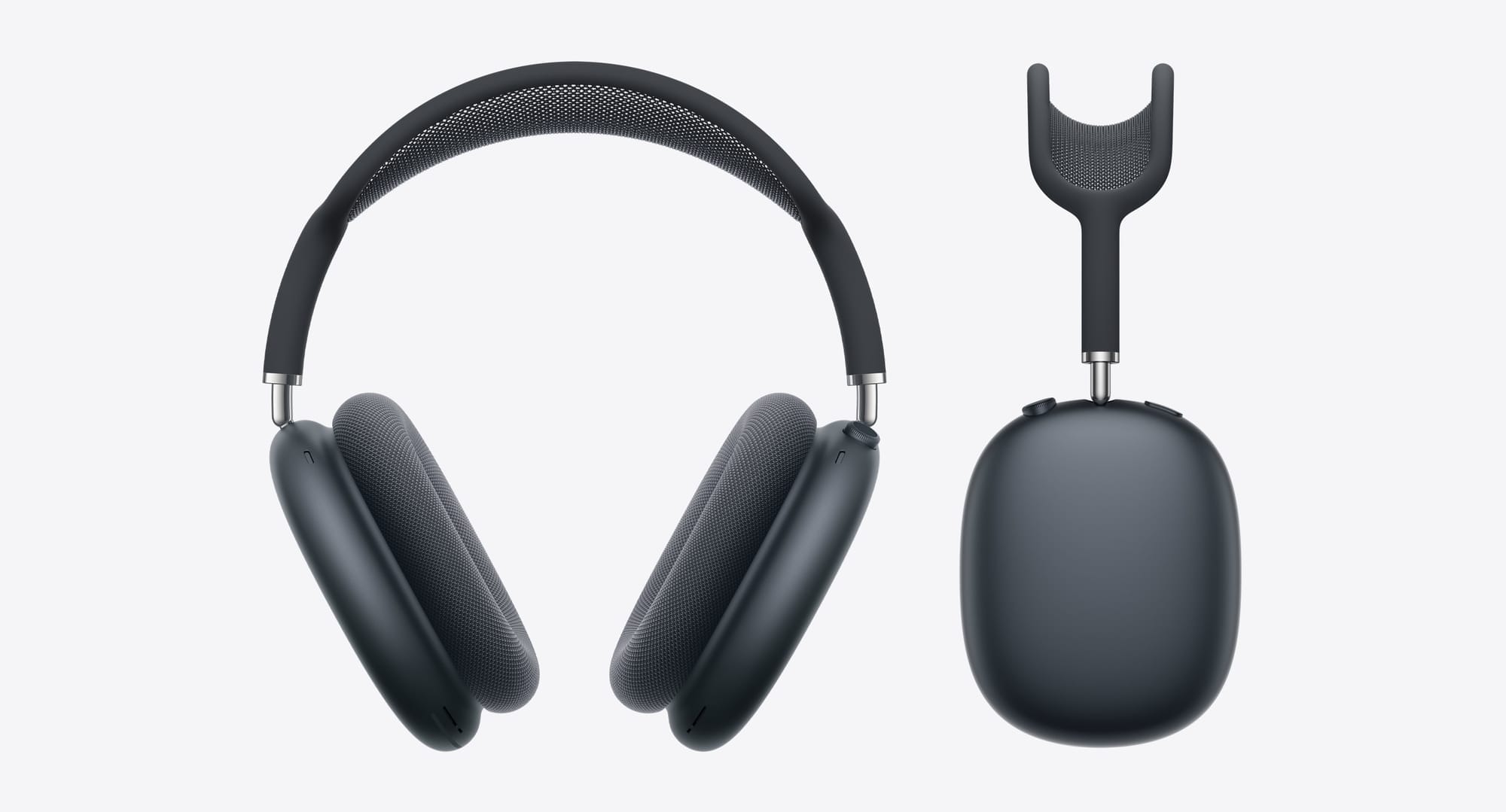

AirPods Max connect to iPhone in about three seconds. You pull them out of the Smart Case, hold them near your phone, and a setup animation appears. That part is genuinely effortless. The problem starts the moment you try to use these same headphones with your Mac, your Windows work laptop, your Apple TV, or the Android phone you keep as a backup. Each device has its own pairing ritual, its own quirks, and its own maddening failure modes.
I’ve walked through every one of those rituals, and the single biggest source of frustration is always the same: the noise control button. Every non-iPhone pairing depends on pressing and holding that button for exactly the right amount of time. Press too briefly and you just toggle noise cancellation modes. Press too long while also holding the Digital Crown and you accidentally factory reset the headphones. Apple puts both controls on the right ear cup with no tactile distinction between them, which means you’re working by feel and timing alone. Knowing the exact sequence for each device, and knowing what to do when it fails, is the difference between a smooth experience and twenty minutes of re-pairing.
 Ad
AdPairing to iPhone and iPad Takes One Step (If Everything Goes Right)
Take AirPods Max out of the Smart Case and hold them within a few inches of your unlocked iPhone or iPad. Within about sixty seconds, a setup animation should slide up from the bottom of the screen. Tap Connect, follow the prompts for Siri if you haven’t set it up already, and tap Done. That’s it. Your AirPods Max are now paired with that device and, because of iCloud, with every other Apple device signed into the same Apple Account. If you’ve already paired other AirPods to Apple devices before, this process will feel familiar.
It does, though, mean that the automatic setup only works when your iPhone or iPad is running the latest version of iOS or iPadOS. I’ve seen the animation refuse to appear on devices running older software, and the fix is always the same: update first, then try again. If the animation still won’t show, open Settings, tap Bluetooth, and manually put AirPods Max into pairing mode by holding the noise control button until the status light flashes white.
Connecting to a Mac Feels Automatic Until It Doesn’t
If your Mac is signed into the same Apple Account as your iPhone, AirPods Max should appear as an audio output option without any manual pairing. Open Control Center from the menu bar, click the Sound section, and select your AirPods Max. In theory, this just works.
In practice, macOS Tahoe has a well-documented Bluetooth issue that can interfere with AirPods connections. When Wi-Fi is running on the 2.4GHz band, Bluetooth audio can stutter, drop, or fail to connect entirely. AirDrop and Handoff make it worse because they share the same radio. I’ve found the most reliable fix is switching to a 5GHz Wi-Fi network and temporarily disabling AirDrop and Handoff in System Settings under General. Once the connection stabilizes, you can re-enable them.
For manual pairing on a Mac: open System Settings, click Bluetooth in the sidebar, then press and hold the noise control button on AirPods Max for about five seconds until the status light flashes white. Your headphones should appear under Nearby Devices. Click Connect. For a deeper look at what AirPods Max can do on your Mac once they’re paired, the hidden audio features in macOS Tahoe are worth exploring.
Windows Pairing Works, but You Lose Half the Features
This is where AirPods Max start to feel like a fish out of water. On Windows 11, go to Settings, then Bluetooth & devices. Make sure Bluetooth is on. Press and hold the noise control button on AirPods Max until the white light flashes. Click Add device, select Bluetooth, and choose AirPods Max when they appear.
The pairing itself is straightforward. What’s less obvious is how much you lose. Spatial Audio is gone. Automatic device switching is gone. Adaptive EQ, which adjusts sound based on the seal around your ears, doesn’t fully function. Personalized Spatial Audio is obviously unavailable. You get noise cancellation, transparency mode, and basic audio playback. That’s a solid baseline for headphones at any price, but it means AirPods Max on Windows deliver maybe sixty percent of what they deliver on a Mac.
One specific annoyance: Windows sometimes labels AirPods Max as two separate devices in Bluetooth settings, one for audio and one for hands-free calling. If you pick the wrong one, you get terrible phone-call-quality audio piped through the hands-free profile. Select the one labeled as a media audio device if you see two entries.
How AirPods Max pairing compares across platforms — features you keep and features you lose.
| Platform | Pairing Method | Spatial Audio | Auto-Switch |
|---|---|---|---|
| iPhone / iPad | Automatic (iCloud) | Yes | Yes |
| Mac (macOS Tahoe) | Auto or Manual BT | Yes | Yes |
| Apple TV | Manual Bluetooth | Yes | Yes |
| Windows PC | Manual Bluetooth | No | No |
| Android | Manual Bluetooth | No | No |
Apple TV Pairing Needs a Manual Push
Even though Apple TV shares your iCloud account, you usually need to connect AirPods Max manually. Navigate to Settings, then Remotes and Devices, then Bluetooth. Put AirPods Max into pairing mode with the noise control button hold. They should appear under Other Devices. Select them, and you’re connected.
The good news is that once paired, AirPods Max on Apple TV support Spatial Audio with head tracking for Dolby Atmos content. The experience is genuinely immersive, and Apple’s support page for AirPods Max confirms the full feature set works over tvOS. I also really like the quick-switch shortcut: press and hold the TV button on the Siri Remote to open Control Center, then select AirPods Max as the audio output. It saves you from navigating back to Bluetooth settings every time.
A word about latency: Bluetooth audio on Apple TV with AirPods Max has a slight delay that’s invisible during movies but noticeable in fast-paced games. If you’re gaming on Apple TV, this is something to keep in mind.
Android Gets Basic Bluetooth and Nothing Else
The process is the same as Windows: open your Android phone’s Bluetooth settings, put AirPods Max into pairing mode with the noise control button, and select them. You get audio playback, a microphone for calls, noise cancellation, and transparency mode. You lose everything Apple ecosystem-specific: Siri, automatic switching, Find My, Spatial Audio, and Personalized Spatial Audio.
Honestly, pairing to Android works more reliably than pairing to a Windows PC in my experience, probably because phones handle Bluetooth connections more aggressively than laptops do. The connection stays stable and the audio quality is perfectly good. You’re just missing the software layer that makes AirPods Max feel like premium Apple headphones rather than premium Bluetooth headphones.
Join The Inner Circle For Serious Apple Users
Exclusive Apple tips. Free to join.
When Pairing Fails Completely, Start With the Status Light
The status light on the right ear cup tells you almost everything you need to know. Press the noise control button once, without holding, and look at the color. Green means the battery is above fifteen percent. Amber means it’s below fifteen percent. No light at all means the headphones are either dead or in the Smart Case’s ultra-low power mode. If there’s no light, charge them for at least five minutes before trying anything else.
The most common pairing failure is simple: AirPods Max aren’t actually in pairing mode. A quick press toggles noise cancellation. A five-second hold enters pairing mode. The button needs firm, deliberate pressure, not a tap. If you’re pressing the right button for the right duration and the light still won’t flash white, try a restart first.
How to Restart AirPods Max
Press and hold both the Digital Crown and the noise control button simultaneously. Wait for the LED to flash amber, which takes about ten seconds. Release. This is a restart, not a reset. Your pairing data stays intact.
How to Factory Reset AirPods Max
Same two-button hold, but keep holding for fifteen seconds. The LED flashes amber first, around the ten-second mark, then flashes white. That white flash is the confirmation. A factory reset wipes all settings and removes all Bluetooth pairings. You’ll need to set them up from scratch, starting with the iPhone setup animation or manual Bluetooth pairing.
Critical detail: a factory reset does not remove AirPods Max from the previous owner’s Apple Account. If you bought these secondhand and they won’t pair, the original owner needs to remove them from their Apple Account first. Without that step, you’re stuck.
Automatic Switching Is Convenient Until Five Devices Fight for Your Ears
When signed into the same Apple Account across multiple devices, AirPods Max automatically route audio to whichever device is actively playing. Start a video on your iPad and audio shifts from your Mac. This sounds elegant. In a house with a MacBook, an iMac, an iPad, an iPhone, and an Apple TV, it becomes chaos. I’ve had AirPods Max hop to my iPad because a notification played a sound while I was in the middle of a call on my Mac.
The fix is to disable automatic switching on devices that don’t need it. On iPhone or iPad, go to Settings, tap Bluetooth, tap the info button next to your AirPods Max, and change Connect to This iPhone to When Last Connected to This iPhone. On Mac, System Settings, Bluetooth, click the info button next to AirPods Max, same toggle. You can find more AirPods settings worth adjusting in our AirPods Pro settings guide, many of which apply to AirPods Max as well.
The USB-C Model Added One Huge Feature and Changed Nothing Else
Apple released the AirPods Max with USB-C in September 2024, replacing the Lightning port. The wireless pairing process is identical between the two models. Both use the Apple H1 chip, Bluetooth 5.0, and the same button layout. The only connectivity difference that matters: the USB-C model supports lossless audio when connected with a USB-C to USB-C cable to a compatible iPhone, iPad, or Mac running iOS 18.4, iPadOS 18.4, or macOS Sequoia 15.4 or later.
That lossless support is real, but it requires a wired connection. The USB-C to 3.5mm analog cable does not deliver lossless because the analog conversion strips it. So if you want lossless, you need a direct digital USB-C to USB-C cable between the headphones and your device. Bluetooth, regardless of model, tops out at AAC codec quality.
Quick-Action Pairing Checklist
- Charge first. Make sure the status LED shows green (above 15%) when you press the noise control button.
- Enter pairing mode. Hold the noise control button on the right ear cup for five seconds. Wait for the white flash.
- Select on your device. Open Bluetooth settings on your iPhone, Mac, PC, Apple TV, or Android phone and pick AirPods Max.
- No white flash? Restart first. Hold both the Digital Crown and noise control button for ten seconds until amber flash.
- Still failing? Factory reset. Same two-button hold, but fifteen seconds: amber flash, then white flash.
- Secondhand pair won’t connect? The original owner must remove them from their Apple Account before you can set them up.

Related Posts
AirPods Max and Sony WH-1000XM5 Go Head to Head for Your Ears
Mar 07, 2026
Your AirPods Max Are Collecting Grime You Cannot See
Mar 04, 2026
Your AirPods Have Dozens of Hidden Settings on Your iPhone — Here Is Every One
Mar 03, 2026