

🎧 Listen to this article
Prefer to listen? An audio version of this article is available for accessibility and convenience.
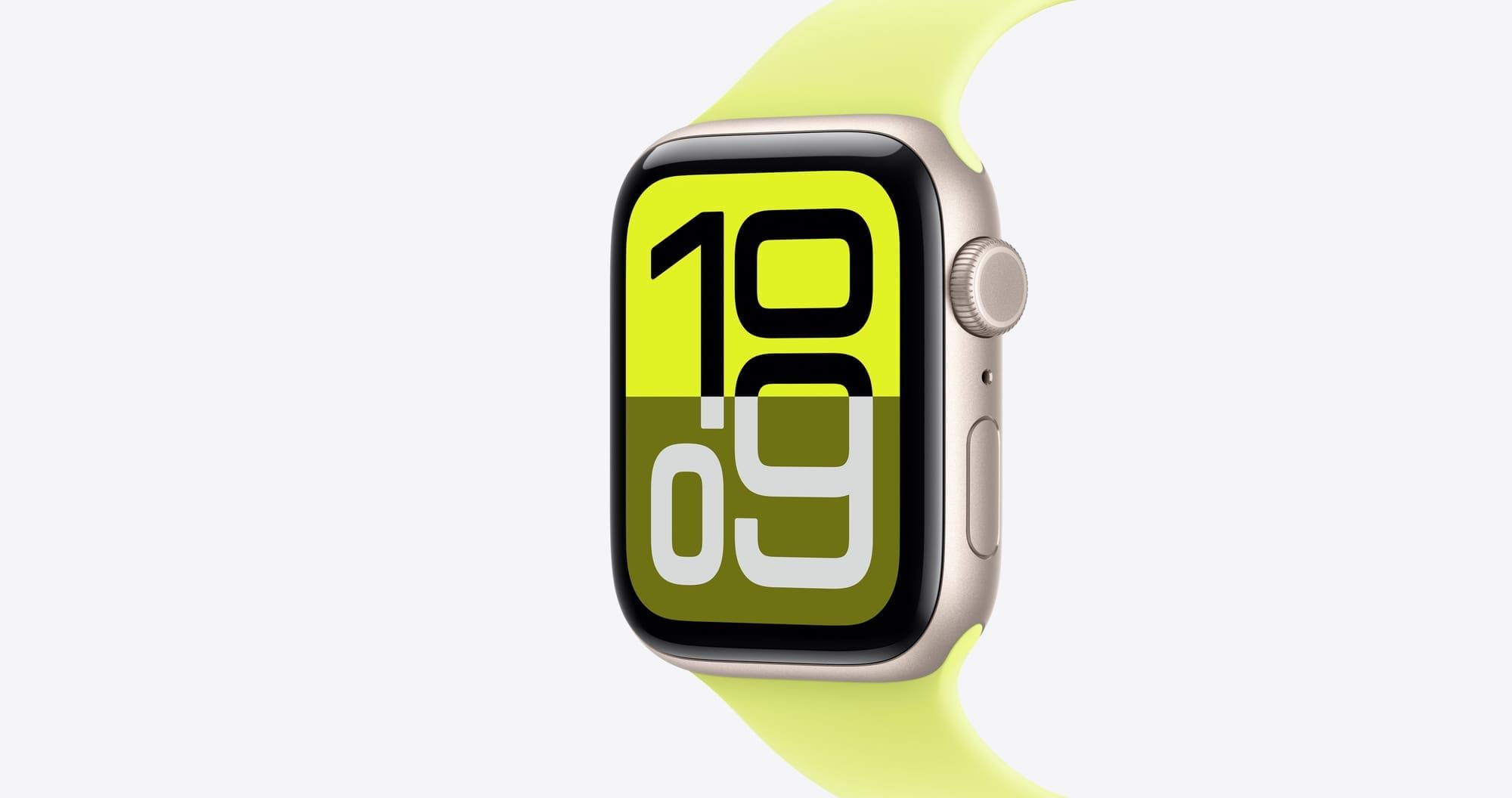
Your Apple Watch ships with dozens of prebuilt faces, but the one that belongs on your wrist probably is not any of them. watchOS 26 includes a full face-building system that lets you combine your own photos, handpicked complications, and personal style into something no one else is wearing. The catch is that most owners browse Apple’s face gallery, tap one that looks decent, and never open the Edit screen where the real customization lives.
While Apple’s gallery faces look polished out of the box, they all share the same limitation. They were designed for everyone, not for you. I find it genuinely strange that Apple buries so much creative power behind a single long-press gesture. The gallery is fine for picking a starting point, but the builder underneath it is where your watch starts feeling personal instead of default.
 Ad
AdThe Face Gallery Is a Starting Line
Long-press your current Apple Watch face until it shrinks. Swipe all the way to the right, past every face you have already added, and tap the plus button. This opens the Face Gallery, a scrollable grid of every face type watchOS 26 supports. You will see over forty options here, from minimal analog dials to data-heavy modular layouts.
Spend a few minutes scrolling through. Each face previews in real time with sample complications, and you get a rough sense of whether it matches how you use your watch. But do not overthink this step. The gallery is a starting point, not a destination. Tap any face to add it, and the real work begins when you long-press again and tap Edit.
That Edit screen is where Apple hides the color options, dial styles, and complication slots that transform a generic face into yours. Most people never see it.
Photos and Portraits Put Your Life on Your Wrist
Nothing personalizes your Apple Watch faster than the Photos face. Open the Apple Watch app on your iPhone, tap Face Gallery, and select Photos. You choose an album or pick up to 24 individual photos, and each time you raise your wrist, a different image fills the screen. Using a dedicated album of high-contrast, tightly cropped shots works far better than syncing an entire camera roll. A landscape photo with a wide horizon line looks beautiful on an iPhone but turns into an unreadable smudge on a 45mm display.
Portraits pushes the concept further. Select a photo shot in Portrait mode, and watchOS applies a live depth effect where the time sits behind the subject’s head or shoulders. Tilting your wrist shifts the layers. The effect is striking when it works, but not every portrait cooperates. Photos where the subject fills the lower two-thirds of the frame and the background has clear separation produce the sharpest depth layers. Group shots and full-body portraits tend to flatten out because the depth map struggles with multiple focal planes.
Kaleidoscope is the odd one in this group. Pick any photo and watchOS mirrors it into a symmetrical pattern that shifts when you tap the display. It sounds like a novelty, but try it with a photo that has strong color blocks — a red door, a sunset gradient, a close-up of autumn leaves. The result is something surprisingly elegant. A Kaleidoscope face in the rotation serves as a refreshing change of pace from the Portraits and Photos faces most people gravitate toward.
Apple documents every face type and its available complications in the official watchOS Face Gallery reference, which is worth bookmarking if you want to know exactly which complications a face supports before you add it.
 Ad
AdComplications Turn a Pretty Face Into a Useful One
A beautiful watch face that cannot show the information you need is just wallpaper. Complications are what make the difference.
In the Edit screen, swipe past the color and style options until you reach the complication slots. Tap any slot to open a picker that scrolls through every available complication, grouped by app. The number of slots varies by face. Infograph offers up to eight, while a minimal face like Numerals Duo gives you two at most.
Here is where third-party apps earn their place. If you use apps like Carrot Weather, Fantastical, or Things, their complications can replace Apple’s defaults with data that fits your day better. Replacing the built-in Weather complication with Carrot Weather on a Modular face, for instance, surfaces the “feels like” temperature instead of the actual reading. That is the number most people check before walking out the door, and Apple’s default complication does not show it.
One friction point worth noting: the complication picker wraps around after scrolling through every app on the list. On smaller displays like the 41mm Apple Watch Series 11, it is painfully easy to scroll past the one you want and circle back through the entire list. Apple could absolutely improve this interface with a search field or alphabetical jump bar. For now, scrolling slowly is the only workaround.
How many default complications are you glancing at every day without actually using? Swapping even two of them changes how the watch feels on your wrist.
If you want to go further, third-party apps like Facer and Clockology open up thousands of community-built faces with custom complication layouts that Apple’s gallery never offers.
Share What You Built and Find What Others Made
Once you have a face you like, long-press it, tap Share, and send it via Messages or Mail. The recipient gets your exact layout — same complications, same color, same style — and can add it with a single tap. Photos and Portraits faces share the layout but not your actual images, so the recipient chooses their own.
This works in reverse too. When someone sends you a shared face, tapping the link opens a preview on your iPhone where you can inspect the complications before accepting. Thankfully, Apple gives you this preview step rather than blindly adding faces that might include complications from apps you do not own, which would leave empty slots on your wrist.
Shared face collections have become a real thing in watchOS communities. Reddit, dedicated Discord servers, and social media threads are full of users posting configurations for specific use cases — gym faces with workout complications front and center, travel faces with world clocks and currency converters, minimal sleep faces that show only the time and an alarm. Why build from scratch when someone already solved your exact layout problem?
Accessibility Worth Knowing
Apple Watch face customization has a meaningful accessibility layer that most guides skip entirely. The Extra Large face displays the time in numerals readable from arm’s length, and it supports a single complication rendered in high contrast. Enabling Bold Text in watchOS Settings, under Display & Brightness, thickens every complication label across all faces — not just the large ones.
VoiceOver reads complications aloud when you tap them, so placement order matters for users who navigate by touch and audio. Putting the most-used complication in the top-left slot — the first position VoiceOver reaches — saves time on every interaction. The full list of Apple Watch models that run watchOS 26 includes which accessibility features each model supports, and it is worth checking before you invest time in a layout your hardware cannot fully render.
Quick-Action Checklist
- Long-press your current face, swipe right, and tap the plus button to open the Face Gallery
- Add a face and immediately long-press again, then tap Edit to access colors, styles, and complications
- Create a dedicated iPhone album of 10 to 24 high-contrast, tightly cropped images for Photos and Portraits faces
- Swap at least two default complications for third-party ones that match your actual daily needs
- Long-press your finished face and tap Share to send it to anyone else with an Apple Watch

Related Posts
Your Apple Watch Band Has a Cleaning Method Most Owners Skip
Apr 02, 2026
Your Apple Watch Has a Sleep System Most Owners Never Touch
Apr 02, 2026
Your Apple Watch Has Life-Saving Features You Never Enabled
Apr 01, 2026