

Last weekend I walked through a friend’s house where music followed us from the kitchen into the living room and out onto the back deck, all without anyone touching a phone. Every speaker was a HomePod. The whole setup looked effortless, which is exactly what Apple wants you to think. And honestly, once everything is configured correctly, it mostly is effortless. But getting there involves a handful of decisions that aren’t obvious from the product page, and a couple of limitations that only become clear once you’ve committed to the ecosystem.
The core idea is simple: place HomePods around your home, assign them to rooms in the Home app, and use AirPlay 2 to send music wherever you want it. You can pair two identical HomePods into a stereo set, pipe your Apple TV’s audio through them for home theater sound, and ask Siri to play jazz in the bedroom while someone else listens to a podcast in the kitchen. The hardware genuinely sounds good for its size, and the integration with Apple’s ecosystem is tight.
It does, though, mean buying into Apple’s way of doing things entirely. There’s no Bluetooth streaming, no aux input, no optical cable. Every bit of audio travels over Wi-Fi. And that’s where the complications start to surface.
 Ad
AdPicking the Right HomePod for Each Room
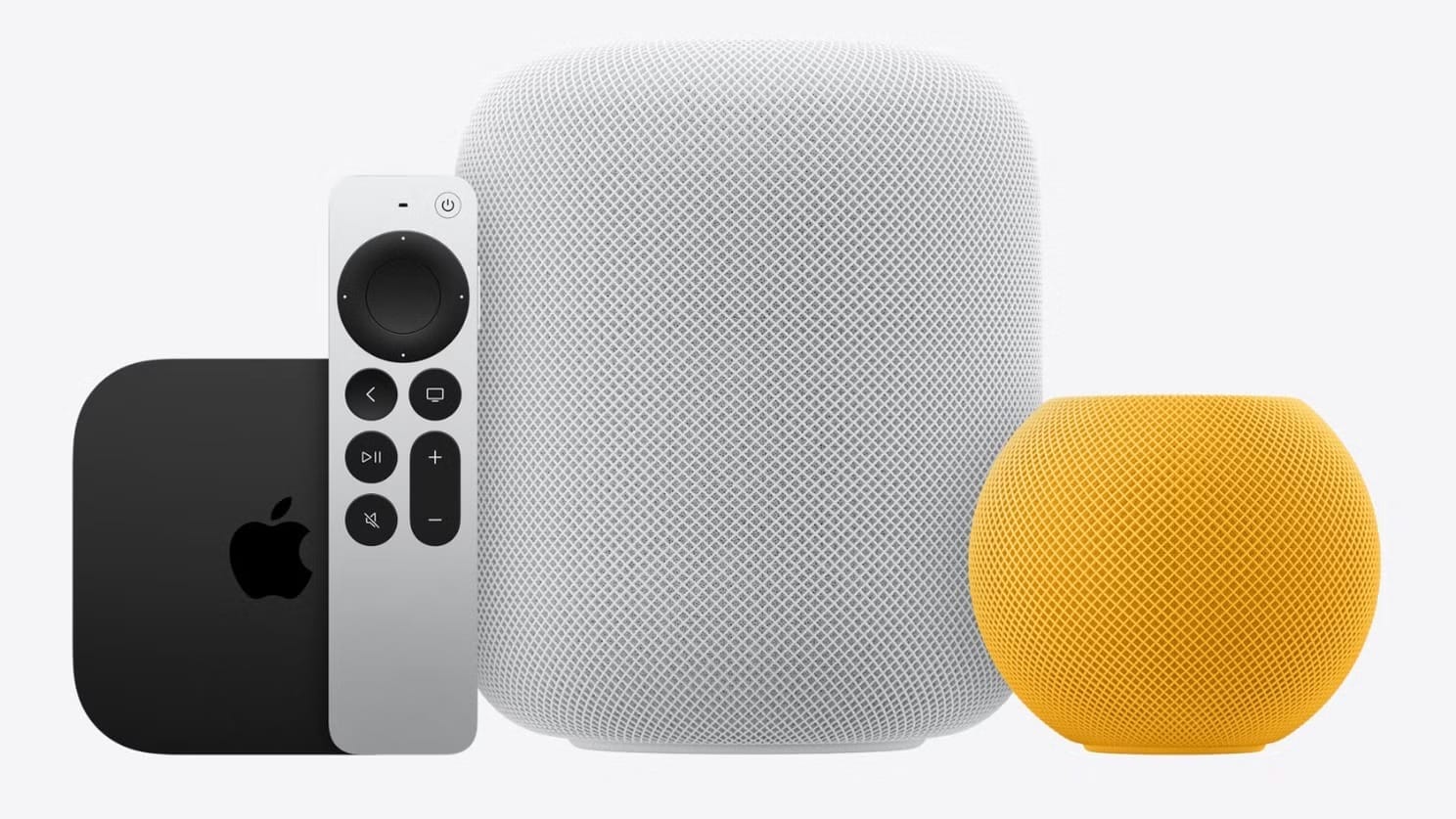
The HomePod lineup currently has two models, and they serve meaningfully different roles. The full-size HomePod, now in its second generation, runs on the Apple S7 chip and packs a 4-inch woofer alongside five tweeters. It costs $299, comes in Midnight or White, and weighs a solid 5.16 pounds. It supports Spatial Audio with Dolby Atmos, has room-sensing calibration, and includes temperature and humidity sensors.
The HomePod mini is a different proposition. At $99, it’s built around a full-range driver with two passive radiators, runs the older S5 chip, and weighs under a pound. It comes in five colors: White, Midnight, Yellow, Orange, and Blue. It sounds surprisingly full for its size, but it can’t do Dolby Atmos or surround sound. That distinction matters a lot when you start thinking about home theater audio.
For a kitchen counter, a bedroom nightstand, or a home office desk, the mini is genuinely capable. For a living room where you want stereo music or Apple TV home theater sound with Atmos, the full-size HomePod is the one to choose.
Here is how the two current HomePod models compare across the features that matter most for a whole-home audio setup.
| Feature | HomePod (2nd gen) | HomePod mini |
|---|---|---|
| Price | $299 | $99 |
| Chip | Apple S7 | Apple S5 |
| Dolby Atmos | Yes | No |
| Home theater surround | Yes (7.1, 5.1) | Stereo only |
| Room sensing | Yes | No |
| Temp/humidity sensors | Yes | No |
| Weight | 5.16 lbs | 0.76 lbs |
| Colors | Midnight, White | White, Midnight, Yellow, Orange, Blue |
| Best placement | Living room, TV room, primary listening space | Kitchen, bedroom, office, hallway |
What Happens When You Pair Two HomePods
Two HomePods of the same model can be configured as a stereo pair, with one handling the left channel and the other the right. The result is a noticeably wider soundstage compared to a single speaker, and it’s worth doing in any room where you spend real time listening to music.
The setup is straightforward. In the Home app, tap on one of the speakers, open its settings, and select Create Stereo Pair. You’ll assign left and right channels, and the pair will appear as a single speaker going forward. Both speakers need to be the same model and the same generation, assigned to the same room in the Home app. You can’t pair a HomePod with a HomePod mini, and you can’t mix a first-generation HomePod with a second-generation one.
One detail worth knowing: only one speaker in the pair responds to Siri. This isn’t a problem in practice most of the time, but if you’ve placed them wide apart in a large room, you might find yourself directing your voice toward the active one. It’s a small friction point that occasionally surfaces.
Filling the House with Multi-Room Audio
AirPlay 2 is the backbone of multi-room audio across HomePods. Every speaker needs to be on the same Wi-Fi network and signed into the same iCloud account. Once that’s in place, you can send different music to different rooms, or the same track everywhere at once, all perfectly synced.
The easiest way to control it from an iPhone or iPad is through Control Center. Tap the AirPlay icon, select as many speakers as you want, and adjust the volume for each one independently. You can also just ask Siri: Play this everywhere sends your current track to all speakers, while Play jazz in the kitchen targets a specific room. The voice commands feel natural once you learn the phrasing, and they’re fast.
Apple Music works natively with AirPlay 2 and handles multi-room without any fuss. Spotify, on the other hand, only supports AirPlay 1. Which means that while you can send Spotify audio to a single HomePod, you won’t get native multi-room selection within the Spotify app. You can work around this by using Control Center to route audio to multiple speakers, but buffering and sync issues are more likely compared to Apple Music. This is one of those practical differences that’s worth considering before you commit to a full-house setup.
There’s also a quirk on the Mac side. You can’t select multiple AirPlay speakers from Control Center on macOS the way you can on iPhone. Instead, you need to use the Music app, which has its own AirPlay output picker that supports multiple destinations. It works, but it’s an inconsistency that catches people off guard.
If you’re just getting started with Apple’s smart home ecosystem, the guide to building your first HomeKit smart home covers the foundational setup that makes all of this work smoothly.
Turning HomePods into Home Theater Speakers
This is where the full-size HomePod really earns its price. Paired with an Apple TV 4K (second generation or later), one or two HomePods can replace a soundbar entirely. A stereo pair of second-generation HomePods supports Dolby Atmos, 7.1, and 5.1 surround sound. Even a single HomePod handles Dolby Atmos on its own, which is impressive for a speaker this size.
Setup requires that the Apple TV and the HomePod or HomePod pair all be assigned to the same room in the Home app. Once they are, the Apple TV will typically prompt you to use the HomePod as its audio output. You can also configure it manually under Settings, then Video and Audio, then Audio Output, where you select your HomePod. Apple’s own setup guide for home theater audio with HomePod walks through each step if you want the official reference.
The HomePod mini does work as an Apple TV speaker, but it only handles stereo audio. No Atmos, no surround. For a bedroom TV or a smaller screen, that might be perfectly fine. For a main living room setup, the full-size HomePod is the way to go.
One thing to be aware of with HDMI connections: eARC passes full Dolby Atmos audio from your TV’s other inputs through to the Apple TV and then to your HomePods, while standard ARC only delivers compressed audio. If your TV supports eARC, make sure the Apple TV is connected to that specific HDMI port.
Join The Inner Circle For Serious Apple Users
Exclusive Apple tips. Free to join.
Where to Put Them and What Happens Next
Placement matters more than you might expect, partly because HomePods calibrate themselves to their environment. Each speaker uses its built-in microphones to analyze sound reflections in the room and adjusts its output accordingly. This recalibration happens automatically whenever you move a speaker, so you don’t need to run any manual process.
For general music listening, Apple recommends keeping a HomePod 6 to 12 inches from walls, on a solid flat surface, with about 6 inches of clear space around it. For home theater use, the guidance shifts: place speakers within 10 inches of the wall, centered with the TV. A stereo pair should flank the TV on either side.
The room-sensing calibration is one of the genuinely clever features of the full-size HomePod. It means you can move a speaker from the living room to a bedroom and it will retune itself without any intervention. The HomePod mini doesn’t have this room-sensing capability, but its smaller driver is less affected by room acoustics in the first place.
I also really like that HomePods double as smart home hubs. They can anchor your HomeKit and Matter accessories, respond to automations, and work alongside features like Adaptive Lighting, which quietly adjusts your lights throughout the day. A HomePod in every room means a Thread border router in every room too, which strengthens the mesh network your smart home accessories rely on.
The Rough Edges Worth Knowing About
No HomePod works as a standard Bluetooth speaker. Bluetooth is used only for initial setup and Handoff. All audio streaming happens over Wi-Fi via AirPlay, which means if your Wi-Fi goes down, your speakers go silent. There’s no plugging in an aux cable as a fallback either, since there’s no line-in, aux, or optical input of any kind.
Wi-Fi reliability is, in fact, the most common source of frustration with HomePods, particularly the mini. Dropouts and connectivity issues are a recurring complaint. The most reliable fix is unglamorous: unplug the speaker, wait a few seconds, and plug it back in. If problems persist, the HomePod troubleshooting guide covers the full range of Siri and connectivity fixes.
Android users are also out of luck for setup. You need an iPhone, iPad, or Mac to configure a HomePod. Once it’s set up, anyone on the same Wi-Fi network can AirPlay audio to it, but the initial configuration and management lives entirely within Apple’s ecosystem.
Accessibility and Clarity
HomePod handles accessibility with more thought than its minimal interface might suggest. VoiceOver can be activated by saying "Hey Siri, turn on VoiceOver" or through the Home app, and once enabled, the touch-sensitive top surface of the HomePod responds to VoiceOver gestures. This means someone who relies on VoiceOver can control playback, adjust volume, and invoke Siri through familiar tap patterns directly on the speaker.
Sound Recognition is the other standout accessibility feature. HomePod can listen for smoke and carbon monoxide alarms and send notifications to your devices, providing an alert layer for anyone who is deaf or hard of hearing. The far-field microphone array, designed to pick up Siri commands across a room even while music is playing, also benefits anyone with limited mobility who can’t easily walk over to the speaker.
From a cognitive accessibility perspective, voice control through Siri keeps interactions simple and predictable. "Play music in the kitchen" and "stop" are the kind of plain-language commands that don’t require navigating menus or remembering gestures. The consistency of this interaction model across every HomePod in the house reduces the learning curve considerably.
Quick-Action Checklist
- Assign every HomePod to a named room in the Home app.
- Confirm all speakers are on the same Wi-Fi network and iCloud account.
- For stereo pairing: Home app, tap one speaker, Settings, "Create Stereo Pair," assign left and right.
- For multi-room: open Control Center, tap the AirPlay icon, select multiple speakers, set individual volumes.
- For home theater: assign Apple TV 4K and HomePod(s) to the same room, then go to Apple TV Settings, Video and Audio, Audio Output, and select your HomePod.
- Connect Apple TV to an eARC HDMI port on your TV for full Dolby Atmos passthrough.
- Place speakers 6 to 12 inches from walls for music, within 10 inches for home theater, on solid flat surfaces.
- After moving any HomePod, give it a moment to recalibrate to the new room automatically.
- For Spotify multi-room, use Control Center on iPhone or iPad to select multiple speakers manually.
- On Mac, use the Music app’s AirPlay picker instead of Control Center for multi-speaker output.
- If a speaker drops off the network, unplug it for ten seconds and plug it back in.
- Enable Sound Recognition in the Home app for smoke and CO alarm detection.

Related Posts
Apple TV+ Has Five Premieres This Month and Your Watchlist Needs All of Them
Mar 04, 2026
Every Apple HomeKit Device That Earns a Spot in Your Smart Home
Mar 03, 2026
Your HomePod Joins the Wrong Wi-Fi Network Until You Fix This One Setting
Mar 03, 2026