
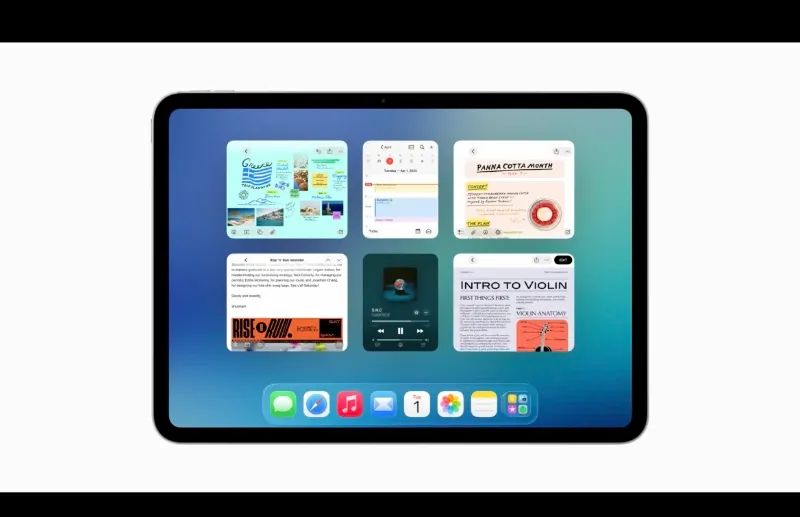
The iPad finally works the way you always wanted it to. iPadOS 26 introduces a completely rebuilt windowing system that brings genuine Mac-style window tiling to your tablet. You can now snap apps into halves, thirds, and quarters using the same traffic light controls you know from macOS. The new system replaces Split View and Slide Over with something far more flexible, giving you precise control over exactly where each app window lives on your screen.
Key Takeaways
- Long-press the green traffic light button to access eight different window tiling arrangements
- Flick any window to the left or right edge to snap it into half-screen position instantly
- The new system supports up to twelve windows on M-series iPads simultaneously
- Drag the handle in the bottom-right corner of any window to resize it freely
- Four-finger swipe up and hold to see all open windows in Exposé view
- Stage Manager now works on all iPads running iPadOS 26, not just M-series models
Quick Comparison: iPadOS 26 Windowing Options
The following table compares the three multitasking modes available in iPadOS 26. Each mode serves different workflow needs, from focused single-app work to complex multi-window productivity.
| Feature | Full-Screen Apps | Stage Manager | Windowed Apps |
|---|---|---|---|
| Window Count | One app at a time | Multiple grouped windows | Up to 12 windows |
| Resize Freedom | None | Limited | Complete |
| Best For | Focused work | Task grouping | Power users |
| Learning Curve | None | Moderate | Steeper |
Why This Changes Everything
Affiliate disclosure: some links in this article are Amazon Associate links. If you buy through them, Zone of Mac may earn a small commission at no extra cost to you, and we only recommend products that genuinely bring value to your Apple setup.
The rebuilt windowing engine in iPadOS 26 does not simply add more windows. Apple constructed an entirely new architecture that intelligently manages which windows receive active rendering. This allows even older A12-powered iPads to run the new system, though M-series iPads can handle significantly more simultaneous windows before hitting memory constraints.
The practical difference becomes obvious within minutes of use. Where Split View forced you into rigid 50/50 or 70/30 splits, the new system lets you position windows anywhere. Drag an app from the top bar to reposition it. Use the grab handle in the bottom-right corner to resize it to any dimension the app supports. Windows remember their position and size even after you close them, so your layouts persist across sessions.
Join The Inner Circle For Serious Apple Users
Exclusive Apple tips. Free to join.
Accessing the Traffic Light Controls
Every windowed app displays three colored buttons in the top-left corner. These work identically to their Mac counterparts. The red button closes the window. The yellow button minimizes it to the Dock. The green button expands the window to full screen with a single tap.
The real power appears when you long-press any of these traffic light buttons. A menu appears with eight tiling options. You can position the window on the left half, right half, top half, or bottom half of your screen. Additional options let you tile into quarters: top-left, top-right, bottom-left, and bottom-right. There is also a "Move and Resize" option for precise manual placement.
This tiling system supports vertical splits that iPad users requested for years. You can finally stack one app above another, which proves invaluable for comparing documents or referencing notes while writing.
The Flick Gesture for Fast Tiling
You do not always need the menu. A quick flick of any window toward the left or right edge snaps it into half-screen position automatically. The gesture feels natural once you discover it: grab the title bar, give it a swift flick toward the edge, and the window snaps into place with a satisfying animation.
To arrange two apps side by side, flick one to the left edge, then flick another to the right edge. The divider between them becomes adjustable. Drag it to give more space to whichever app needs it. This behavior will feel familiar if you have used window snapping on macOS or Windows.
Getting Serious About Multi-Window Workflows
The trackpad transforms this entire system from interesting to indispensable. Touch input works well for basic window management, but complex multi-window workflows demand more precision. The Magic Keyboard for iPad Pro includes a glass trackpad with haptic feedback that supports every Multi-Touch gesture, including the crucial three-finger swipe for switching between windows and the pinch gesture for quick access to all open apps.
The trackpad also enables hover states throughout iPadOS 26. The traffic light buttons only appear when you hover near them with the cursor, keeping the interface clean until you need those controls. Right-clicking (two-finger tap) brings up context menus throughout the system, accelerating common tasks that previously required multiple taps.


Get the Apple Magic Keyboard for iPad Pro 11-inch here (Amazon affiliate link):
https://www.amazon.com/dp/B0D3J65R9N?tag=zoneofmac-20
The Menu Bar Adds Desktop-Class Access
iPadOS 26 introduces a full menu bar accessible by swiping down from the top of the screen while an app is in full-screen mode. This bar contains File, Edit, View, and other menus depending on the app. Functions that previously required knowing obscure keyboard shortcuts now live in visible, tappable locations.
The menu bar appears automatically when you hover near the top of the screen with a trackpad cursor. For touch users, a downward swipe from the top edge reveals it. This design ensures the menu stays hidden during normal use while remaining instantly accessible when needed.
Professional apps gain the most from this addition. Final Cut Pro, Logic Pro, and Pixelmator Pro now expose their full functionality through proper menus rather than cramming everything into toolbars. The experience genuinely approaches the Mac for serious creative work.
Exposé Brings Order to Window Chaos
Swipe up from the bottom of the screen and hold to enter Exposé view. Every open window spreads across the display, each one shrunk to a manageable thumbnail. Tap any window to bring it to the front. This proves essential once you have six or seven windows scattered across your workspace.
From Exposé, you can close windows by tapping their individual close buttons. You can also identify which apps have multiple windows open, making it easy to consolidate or clean up your workspace. A simple swipe up without the hold returns you to the Home Screen instead.
Stage Manager Still Exists
Stage Manager did not disappear. Apple moved it from Control Center to Settings, where you find it under Multitasking & Gestures. Users who prefer Stage Manager's group-based approach can continue using it, and the rebuilt windowing engine actually improves its performance.
The key difference: Stage Manager now works on every iPad running iPadOS 26, not just models with M-series chips. The architectural improvements that power the new windowing system benefit Stage Manager as well, making it viable on hardware that could not previously run it.
Accessibility & Clarity
The new windowing system includes thoughtful accessibility considerations. Window controls respond to VoiceOver with clear announcements of each button's function and current window state. Reduce Motion settings affect window animations, providing static transitions for users sensitive to on-screen movement.
The traffic light buttons present as distinct shapes to VoiceOver, described by their function rather than color. Users with color blindness receive the same information through spatial positioning and shape differentiation. The grab handle for resizing windows provides a generous touch target that accommodates users with motor control considerations.
For users who find the new system overwhelming, the Full-Screen Apps option in Settings returns the traditional one-app-at-a-time experience. This represents a meaningful cognitive accessibility choice, letting users opt out of window management complexity entirely while retaining access to all other iPadOS 26 features.
Building Your Ideal Workspace
The most powerful aspect of the new system emerges from deliberate workspace design. Consider creating a research workspace with Safari occupying the left two-thirds of the screen, Notes taking the right third, and Preview floating as a smaller window for PDF reference. That exact layout becomes possible, remains persistent across sessions, and works with any compatible apps.
Video editors might keep Final Cut Pro expanded across most of the screen while maintaining a narrow Messages window for quick communication without context switching. Writers might split the screen between their document and research materials, adjusting the division as needs change throughout the day.
The system accommodates whatever workflows you construct. There are no preset templates, no artificial limitations beyond what the apps themselves support. If an app allows a narrow window, you can make it narrow. If it requires more space, you give it more space.
Quick-Action Checklist: Master iPadOS 26 Window Tiling
- Open Settings → Multitasking & Gestures → select Windowed Apps
- Launch any app and locate the traffic light buttons in the top-left corner
- Long-press the green button to reveal tiling options
- Select "Left Half" to snap the window to the left side
- Open a second app using Spotlight or the Dock
- Flick the second app to the right edge to complete a side-by-side layout
- Drag the grab handle in the bottom-right corner to resize either window
- Four-finger swipe up and hold to view all windows in Exposé
- Tap any window thumbnail to bring it to the front
- Long-press the green button and select "Fill Screen" to return to full-screen mode

Related Posts
Your iPad Moves Files Six Ways and You're Probably Using One
Apr 08, 2026
Your iPad’s Magic Keyboard Has a Shortcut Layer Most Owners Never Open
Apr 07, 2026
Your Apple Pencil Tip Is Wearing Out and You Can’t Even Tell
Apr 06, 2026