
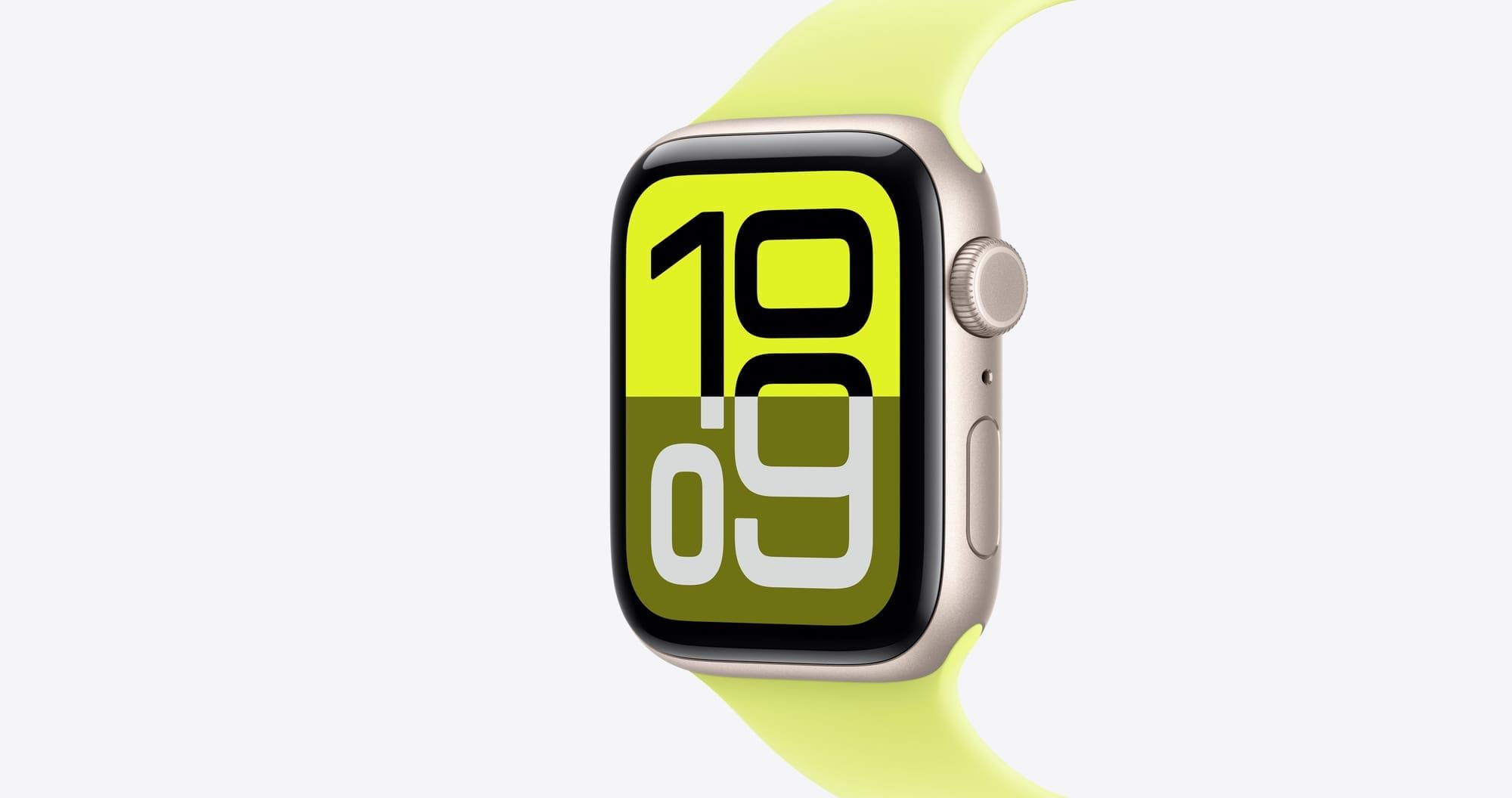

Apple Watch For Your Kids turns a cellular Apple Watch into a standalone phone, tracker, and safety device for a child who doesn’t own an iPhone. The setup runs through your iPhone, the child wears the watch independently, and you manage everything from parental controls to location notifications without handing over a smartphone. The catch is that the entire experience depends on getting a handful of settings right during initial pairing, and Apple buries some of the most useful controls in places you wouldn’t think to look.
I also really like the reassurance that comes from knowing a child can reach me directly from their wrist, without carrying a device that opens the door to social media, unfiltered browsing, and the attention economy that frankly worries every parent I know. But this isn’t a “set it and forget it” situation. The controls that make Apple Watch For Your Kids genuinely useful take about twenty minutes of deliberate configuration, and skipping any of them undercuts the whole point.
Which Apple Watch Actually Works for This
Here’s the detail that catches most parents off guard: you need a cellular Apple Watch. GPS-only models will not work with Family Setup. The watch needs its own phone number and its own data connection so it can function when your child is away from your iPhone and away from Wi-Fi.
The most practical choice is the Apple Watch SE 3 with GPS + Cellular, starting at $299 for the 40mm or $329 for the 44mm. It runs the S10 chip, the same processor inside the Series 11 and Ultra 3, which means it handles watchOS 26 without stuttering. The crack-resistant glass is noticeably tougher than the SE 2, and Apple added an Always-On display this generation, which matters more for kids than adults because they check the time by glancing rather than by deliberately raising their wrist.
If you already own an older Apple Watch with cellular sitting in a drawer, any Series 4 or later will work. Just make sure it can run a current enough version of watchOS. For a full breakdown of which models run which features, the Zone of Mac guide to every Apple Watch that runs watchOS 26 covers the entire lineup.
On the parent’s side, you need an iPhone 11 or later running iOS 26 if you’re setting up an SE 3 or Series 11. Older watches paired with older watchOS versions have more relaxed iPhone requirements, but for a fresh purchase, iPhone 11 is the floor.
What the Actual Setup Looks Like
The pairing process mirrors setting up any Apple Watch, with one crucial fork in the road. When your iPhone asks whether you’re setting up the watch for yourself or a family member, tap “Set Up for a Family Member.” Miss that screen and you’ll end up in a standard setup that ties the watch to your Apple ID, and undoing it means a full erase.
From there, you’ll create or select your child’s Apple Account, choose their name from your Family Sharing group, set a passcode, and activate cellular. The cellular activation step varies by carrier. AT&T, Verizon, T-Mobile, Boost, Cricket, and several regional carriers support Apple Watch For Your Kids in the US. Monthly plans run between ten and fifteen dollars, plus potential activation fees. It does, though, mean your child’s watch gets its own phone number, separate from yours, which is both a feature and a thing to budget for.
During setup, Apple walks you through enabling Location Services for Find My, Siri, Apple Cash Family, Messages in iCloud, Health Data sharing, Emergency Contacts, and Activity tracking. I’d recommend turning on every one of these. You can always disable individual features later, but you can’t enable some of them without unpairing and starting over.
The Parental Controls Worth Configuring First
This is where most guides stop too early. The setup wizard covers the basics, but the controls that actually shape your child’s daily experience live inside Screen Time and Schooltime, and you configure them from the Apple Watch app on your iPhone after pairing is complete.
Screen Time lets you set Downtime schedules, app limits, communication limits, and content restrictions. The communication limits are particularly important: you choose exactly which contacts your child can call, text, and FaceTime with during both allowed time and downtime. If you leave this at the default, they can contact anyone.
Schooltime deserves its own attention. When active, it locks the watch down to just the time display and a yellow circle icon. No apps, no notifications, no distractions. You schedule it by day and time, and you can create multiple blocks — morning classes from 8:00 AM to noon, afternoon classes from 1:00 PM to 3:00 PM, for example. Your child can temporarily exit Schooltime by pressing and holding the Digital Crown, but here’s the part Apple doesn’t emphasize enough: you get an immediate notification on your iPhone every time they do, and when they lower their wrist, Schooltime re-engages automatically. You can review a full unlock report showing exactly when and for how long they exited. That level of accountability, without being invasive, strikes a balance I genuinely appreciate.
Ask to Buy is another control worth enabling. With it active, any time your child tries to download an app from the App Store on their watch, the request comes to your iPhone for approval. You see the app, read its description, and decide. In practice, though, installing apps on a Family Setup watch can be finicky. Multiple parents on Apple’s support forums describe needing to sign in as the child on their own device, accept App Store terms of service, and then return to the child’s watch to complete the download. It’s clunky, and Apple hasn’t fully smoothed this out.
What Kids Actually Get — and What They Don’t
The feature set is more capable than most people expect. Your child can make and receive phone calls with approved contacts, send and receive texts, use Walkie-Talkie with other Apple Watch wearers you’ve approved, get turn-by-turn directions in Maps, track Activity Rings tailored for kids (measuring Move Minutes rather than active calories), use Siri, set alarms and timers, and in the US, spend Apple Cash Family money at NFC terminals using Apple Pay.
In the worst case of your child losing the watch, or the watch being taken, Find My shows its real-time location on your iPhone. Emergency SOS works even during Schooltime. Fall Detection and Crash Detection function in the background on supported models.
The limitations matter too. No credit or debit cards work in Apple Pay — only Apple Cash Family balance. Many third-party apps that require a companion iPhone simply won’t install. There’s no Sleep tracking, no ECG, no Blood Oxygen monitoring, no Cycle Tracking. The Medications app is absent. International roaming doesn’t work. And the monthly cellular bill adds up: between the watch payment and the carrier plan, you’re looking at roughly $35 to $45 per month if you finance the SE 3 over two years, or $10 to $15 per month for the cellular plan alone if you pay for the watch outright.
A New watchOS 26 Feature Most Parents Overlook
watchOS 26 quietly introduced Adaptive Power for Apple Watch For Your Kids. It’s enabled by default on every Family Setup watch, and what it does is throttle performance slightly to extend battery life. Siri may respond a beat slower. Scrolling and animations feel less fluid. For a child who needs the watch to last a full school day and into the after-school hours, that trade-off is worth it. But if your child complains the watch feels sluggish, check Settings, then Battery, then Adaptive Power — you can disable it from there.
This is one of those features that solves a real problem (kids forgetting to charge their watch) with an invisible compromise. I think it’s the right default, but knowing it exists means you can make an informed choice.
An honest recommendation: if you’re considering an Apple Watch as a first connected device for your child, the SE 3 with cellular is the clear pick. It’s the least expensive path into Family Setup with current hardware, it includes every safety feature that matters, and watchOS 26 makes the whole experience more polished than it was even a year ago. Pair it with fifteen minutes of deliberate parental control configuration, and you have a communication and safety device that gives your kid independence without giving them the entire internet.
For more on what the Apple Watch can do across different models and price points, check the Zone of Mac comparison of the Series 11 versus Ultra 3 — it covers the honest differences that should guide your buying decision regardless of who wears it.

Olivia Kelly
Staff writer at Zone of Mac with over a decade of Apple platform experience. Verifies technical details against Apple's official documentation and security release notes. Guides prioritize actionable settings over speculation.
Related Posts
Build the Custom Apple Watch Face You Actually Want
Apr 06, 2026
Your Apple Watch Band Has a Cleaning Method Most Owners Skip
Apr 02, 2026
Your Apple Watch Has a Sleep System Most Owners Never Touch
Apr 02, 2026