
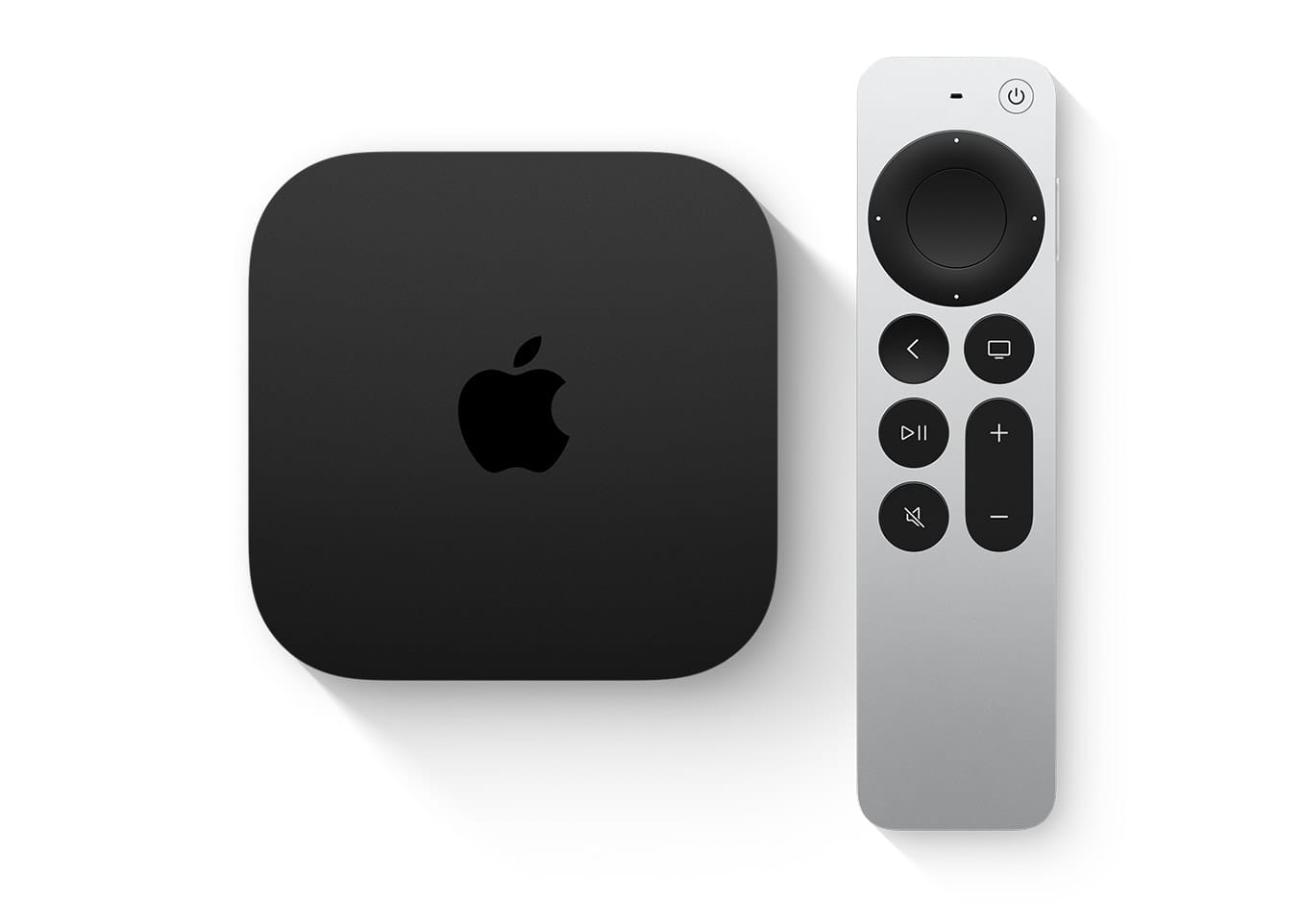

Formula 1 is exclusively on Apple TV in the United States starting with the 2026 season, and the experience Apple built is not just a live stream with a play button. Every Grand Prix arrives in 4K with Dolby Vision and 5.1 surround sound, which already puts it ahead of anything ESPN or ABC ever delivered for F1. But the headline feature is Multiview: up to four simultaneous live feeds on one screen, configurable by you, running on Apple TV 4K, iPad, or Apple Vision Pro.
The catch — and it is a real one — is that most of these features are buried behind menus that Apple does not surface during the initial setup. I opened the Apple TV app on race weekend, tapped into the F1 section, and the default experience looked like a single camera feed with English commentary. Fine. But that is roughly ten percent of what is actually available. The remaining ninety percent requires you to poke around, and that is what this guide covers.
 Ad
AdWhat You Actually Get for $12.99 a Month
The F1 subscription through Apple TV costs $12.99 per month with a seven-day free trial for new subscribers. If you recently purchased an iPhone, iPad, Apple TV, or Mac, Apple throws in three months free — worth checking before you hand over your credit card. That subscription includes F1 TV Premium at no additional cost, which historically ran $9.99 per month on its own. So Apple effectively bundled two services into one price.
Every session is covered. Free practice, qualifying, sprint races, and the Grand Prix itself. All in 4K Dolby Vision with 5.1 surround sound. This is the first time F1 has ever been broadcast in 4K with Dolby Vision, and the difference is noticeable — the detail in wet-weather races where spray and reflections matter is a genuine step up from the 1080p broadcasts we had before. According to Apple’s official announcement, coverage includes up to 30 additional live feeds across all sessions, which brings us to the part most fans skip.
Replays and highlights land shortly after each session. Apple also offers a “Race in 30” format — a spoiler-free, condensed version of the full Grand Prix for people who cannot watch live. That last part matters more than it sounds. F1 races start at wildly different times depending on the circuit. The Australian Grand Prix kicked off at 11 p.m. Pacific. Bahrain will be early afternoon Eastern. If you are not setting an alarm for every race, the Race in 30 format saves the weekend.
How I Actually Set Up Multiview for Race Day
Multiview is the feature that separates Apple TV’s F1 coverage from everything that came before it. You can run up to four live feeds simultaneously on a single screen, and the configuration is entirely up to you. Open the Apple TV app, navigate to the F1 section from the sidebar, select the live session, and then look for the Multiview option during playback. It is not on the main screen — you need to bring up the playback controls and swipe or tap into the Multiview menu.
Apple offers preconfigured Multiview layouts organized by team, which is a smart default for most fans. Pick your team, and you get the two onboard cameras for your drivers alongside the main broadcast feed. But you can also build your own layout from scratch. The feeds available include the main world feed, individual onboard cameras for all 20 drivers, the Driver Tracker (a bird’s-eye GPS-style view of every car on track), Podium feeds that dynamically follow whoever is running in first, second, and third, and the mixed onboard feed that automatically switches between the most interesting cameras as the race unfolds.
One thing that surprised me: the Multiview audio defaults to the main feed. You can change which of the four feeds provides audio, but you have to do it manually each time you enter Multiview. It does not remember your preference between sessions. Minor annoyance, not a dealbreaker, but you notice it on the third race weekend in a row.
 Ad
AdThe Commentary Choice Nobody Tells You About
Here is the detail that most guides skip entirely. In the United States, Apple TV gives you two complete commentary teams, and you can switch between them at any point during the race. The default is the F1 TV main feed, fronted by Alex Jacques and Jolyon Palmer in the commentary booth with Laura Winter, James Hinchcliffe, Lawrence Barretto, and Chris Medland providing paddock and pit lane coverage. Juan Pablo Montoya and Betty Glover are new additions for 2026.
The second option is the full Sky Sports F1 broadcast — the same one viewers in the UK watch. David Croft and Harry Benjamin call the race, with Simon Lazenby, Natalie Pinkham, Ted Kravitz, Rachel Brookes, and Craig Slater handling analysis and reporting. If you have watched F1 for any length of time through international streams or previous US broadcasts, the Sky team is probably the voice you associate with the sport.
Switching between them is straightforward but not obvious. During playback, bring up the controls, swipe up to audio settings, and the commentary team options appear alongside the language toggle for English and Spanish. I prefer the Sky feed for race day because Croft’s energy during overtakes is genuinely hard to match, but the F1 TV team does a better job of explaining technical regulations for newer fans. Try both during a practice session before committing for the race.
The table below compares the main viewing features available across Apple’s F1 devices so you can decide where to watch before the lights go out.
| Feature | Apple TV 4K | iPad | iPhone |
|---|---|---|---|
| Multiview (4 feeds) | Yes | Yes | No |
| 4K Dolby Vision | Yes | No | No |
| 5.1 Surround Sound | Yes | No | No |
| Dual Commentary | Yes | Yes | Yes |
| Driver Onboard Cameras | All 20 | All 20 | All 20 |
Beyond Apple TV — Free F1 on Tubi and the Apple Ecosystem Extras
Apple partnered with Tubi to offer free F1 altcasts for select races during the 2026 season. These are not the main broadcast — they feature alternative commentary teams and a more casual presentation aimed at newer fans. But they are completely free, available on every device Tubi supports, and they give you a legitimate way to watch live F1 without paying anything. If you are trying to get a friend into the sport, Tubi is the gateway.
Yahoo Sports picks up live practice and qualifying sessions, and Apple is putting five races into IMAX theaters across 50 US locations. That last one is wild — watching an F1 race on an IMAX screen is not something anyone predicted as recently as last year.
The Apple ecosystem integration goes deeper than the TV app. The Apple Sports app — free on iPhone — delivers real-time standings, lap-by-lap timing, and Live Activity notifications on your Lock Screen during races. Apple Maps shows circuit layouts with 3D landmarks. Apple Music offers free live audio broadcasts and curated driver playlists. Apple Podcasts has a dedicated F1 collection. It is a full-stack approach, and while not every piece is essential, the Sports app with Lock Screen updates is genuinely useful if you are following a race while doing something else. If you already set up your Apple TV for live sports, the sports setup guide on Zone of Mac covers the broader configuration for MLS, MLB, and other leagues.
The Setup Checklist Before Your Next Race
- Open the Apple TV app, tap Formula 1 in the sidebar, and subscribe or activate your free trial
- Add F1 to My Sports so live sessions appear automatically in your Continue Watching row
- During your first live session, bring up playback controls and explore Multiview layouts — start with a team preset, then customize
- Swipe up during playback to switch commentary between F1 TV and Sky Sports, and choose English or Spanish
- Download the free Apple Sports app on your iPhone for Lock Screen race updates and live standings
- Check the race calendar — times vary wildly by circuit, and the Race in 30 replay saves you when the start time is midnight
Apple built a platform here that cable and satellite never came close to offering for motorsport. Thirty live camera feeds, two commentary teams you can swap at will, four simultaneous streams on one screen, and 4K Dolby Vision for a sport where visual detail directly affects how much you understand about what is happening on track. The multiview feature alone would have justified the subscription for a lot of fans. Everything else makes it the best way to watch F1 that has existed in the US, and that is not a marginal call. If you are wondering whether Apple Vision Pro adds anything to the experience, the Vision Pro spatial setup guide on Zone of Mac covers how immersive apps work on the headset.

Related Posts
Apple HomePod Gen 1 vs Gen 2: Which Speaker Deserves a Spot in Your Home
Mar 06, 2026
The Apple HomePod Sounds Incredible, but Three Years Later, Should You Still Buy One?
Mar 05, 2026
Your Wyze Cameras Work in Apple Home, but Only If You Build the Bridge Yourself
Mar 05, 2026