

🎧 Listen to this article
Prefer to listen? An audio version of this article is available for accessibility and convenience.
Your Apple TV 4K shipped with picture and audio settings that work for everybody and impress nobody. The default configuration outputs everything in a single format, ignores your TV's actual color capabilities, and sends audio through a pipeline that quietly strips spatial information before it reaches your soundbar. Fixing all of this takes roughly ten minutes, and the difference on a good 4K display is immediately visible.
The catch is that Apple buries the most impactful settings across three different menus, and two of the best ones require your iPhone to be involved. I walked through every setting on the current Apple TV 4K running tvOS 26, and these are the ones that actually change what you see and hear.
 Ad
AdWhy Match Content Is the First Setting to Enable
Start with the setting that changes everything about how your Apple TV handles different content: Match Content. Navigate to Settings, then Video and Audio, then Match Content. You will find two toggles here, and both should be on.
Match Dynamic Range tells your Apple TV 4K to read the mastering metadata of whatever you are watching and switch its HDMI output to match. SDR content plays in SDR. HDR10 content triggers an HDR10 output. Dolby Vision content triggers Dolby Vision. Without this enabled, your Apple TV forces everything through whatever single format you picked under Format, which means SDR menus and old sitcoms get tone-mapped into Dolby Vision and end up looking washed out, with crushed blacks and colors that feel slightly off.
Match Frame Rate does the same thing for refresh rate. When it is on, 24fps film content outputs at 24Hz, and 60fps content outputs at 60Hz. When it is off, every piece of content gets forced to 60Hz, which introduces 3:2 pulldown judder on theatrical films. If you have ever noticed that panning shots in movies look stuttery on your Apple TV but smooth on your Blu-ray player, this is almost certainly why.
The recommended approach: set your base Format to 4K SDR at 60Hz, then enable both Match toggles. You get clean, sharp menus in SDR, and the Apple TV automatically switches to the correct format and frame rate when content starts playing. The first time you enable these, your screen will go black a few times while Apple TV tests what your TV supports. That is normal.
How Color Balance Calibration Uses Your iPhone
Your Apple TV 4K has a display calibration tool that uses the TrueDepth camera on any Face ID iPhone to measure the colors your TV actually produces, and then adjusts its output to compensate. It is genuinely useful on TVs that have never been professionally calibrated, which is most of them.
Go to Settings, then Video and Audio, then Calibration, then Color Balance. The Apple TV will ask you to hold your iPhone face-down against the TV screen, centered inside a frame. The screen cycles through a series of colors and neutral tones while the iPhone's sensors measure the output. When it finishes, you see a before-and-after comparison and can choose Use Balanced or Reset.
There is one significant limitation that Apple does not make obvious: Color Balance only works in SDR and HDR10. If your display is set to Dolby Vision, the option grays out with a message saying your TV does not need calibration. This is because Dolby Vision handles its own tone mapping dynamically, but it also means you cannot calibrate the SDR and HDR10 modes while Dolby Vision is selected as your default format. You need to switch your Format to 4K SDR first, run the calibration, then re-enable Dolby Vision through Match Dynamic Range. It does, though, mean the calibration data sticks and applies whenever the Apple TV falls back to SDR or HDR10.
Also worth noting: this feature does not work with projectors at all. Holding your phone against a projection screen blocks the projector's light, and the camera cannot read colors that are not being projected.
 Ad
AdThe Audio Format Settings That Quietly Downgrade Your Sound
The audio format settings on Apple TV 4K are where the most common mistakes happen, and the symptoms are subtle enough that people live with them for years. Navigate to Settings, then Video and Audio, then Audio Format.
The default behavior is that Apple TV decodes all audio on-device and sends uncompressed multichannel PCM over HDMI. This works, but it means your AV receiver or soundbar never sees the original Dolby Atmos bitstream. It gets a decoded version instead. For most soundbars, the difference is negligible. For proper Atmos-capable systems with upfiring speakers, you want the spatial metadata intact.
Under HDMI Output, make sure the Dolby Atmos toggle (renamed to Spatial Audio in tvOS 26.4) is enabled. Apple TV sends Dolby MAT-encoded audio, which wraps uncompressed LPCM with Atmos spatial metadata, over HDMI. This requires either a direct HDMI connection from the Apple TV to your receiver's HDMI input, or eARC if you are routing through the TV. Standard ARC connections cannot handle the bandwidth. If you have been running Apple TV through your TV's HDMI port and then using ARC to your soundbar, you are almost certainly not getting Atmos even though your settings say otherwise.
Two more audio settings deserve attention. Enhance Dialogue uses machine learning to isolate and boost speech. The Enhance setting is subtle and worth trying. Enhance More noticeably alters the mix and can make action scenes sound flat, so I would use it only for content with genuinely poor dialogue mixing. And Reduce Loud Sounds applies dynamic range compression that narrows the gap between whisper-quiet dialogue and explosion-volume effects. I keep it off for movies I care about, but it is genuinely useful when watching something at low volume late at night.
For anyone who has been living with the Apple TV 4K sending compressed Dolby Digital 5.1 because they did not realize their HDMI connection type matters, the improvement from switching to a direct connection with Atmos enabled is dramatic. If you have a receiver with an HDMI input, connecting the Apple TV directly to that input instead of through the TV is the single biggest audio upgrade available.
One more tvOS 26 change worth configuring: if you are running the tvOS 26.4 beta, there is a new Continuous Audio Connection setting under Audio Format. It keeps a constant LPCM/Dolby MAT audio signal active over HDMI instead of renegotiating the connection every time the audio format changes between content. This eliminates the brief audio dropouts, popping sounds, and volume inconsistencies that happen when switching between stereo menus, 5.1 surround, and Atmos content. It is particularly helpful with Sonos soundbars, which are notorious for a half-second audio gap when the format changes.
Chroma Subsampling and the HDMI Connection Check
Under Settings, then Video and Audio, you will find a Chroma setting that controls color subsampling. The short version: 4:4:4 gives you full color resolution and the sharpest text rendering, but it is only available at 4K SDR 60Hz. If you are using Match Content with a base format of 4K SDR (which I recommended earlier), your menus and SDR content will display with 4:4:4 color, and HDR content will automatically drop to 4:2:2, which is the maximum for HDR at 60Hz. There is a quirk here: changing your Format setting can silently reset Chroma back to 4:2:0, so check it after making any video output changes.
Apple also includes a Check HDMI Connection tool under Video and Audio that pushes a high-bandwidth signal through your cable for two minutes to detect errors. If your picture occasionally flickers or drops to a lower resolution, run this test before buying a new cable. HDMI cables marked "Ultra High Speed" or with the "Compatible Dolby Vision" designation are what Apple TV 4K needs for full 4K HDR output.
Siri Remote Playback Tricks You Probably Missed
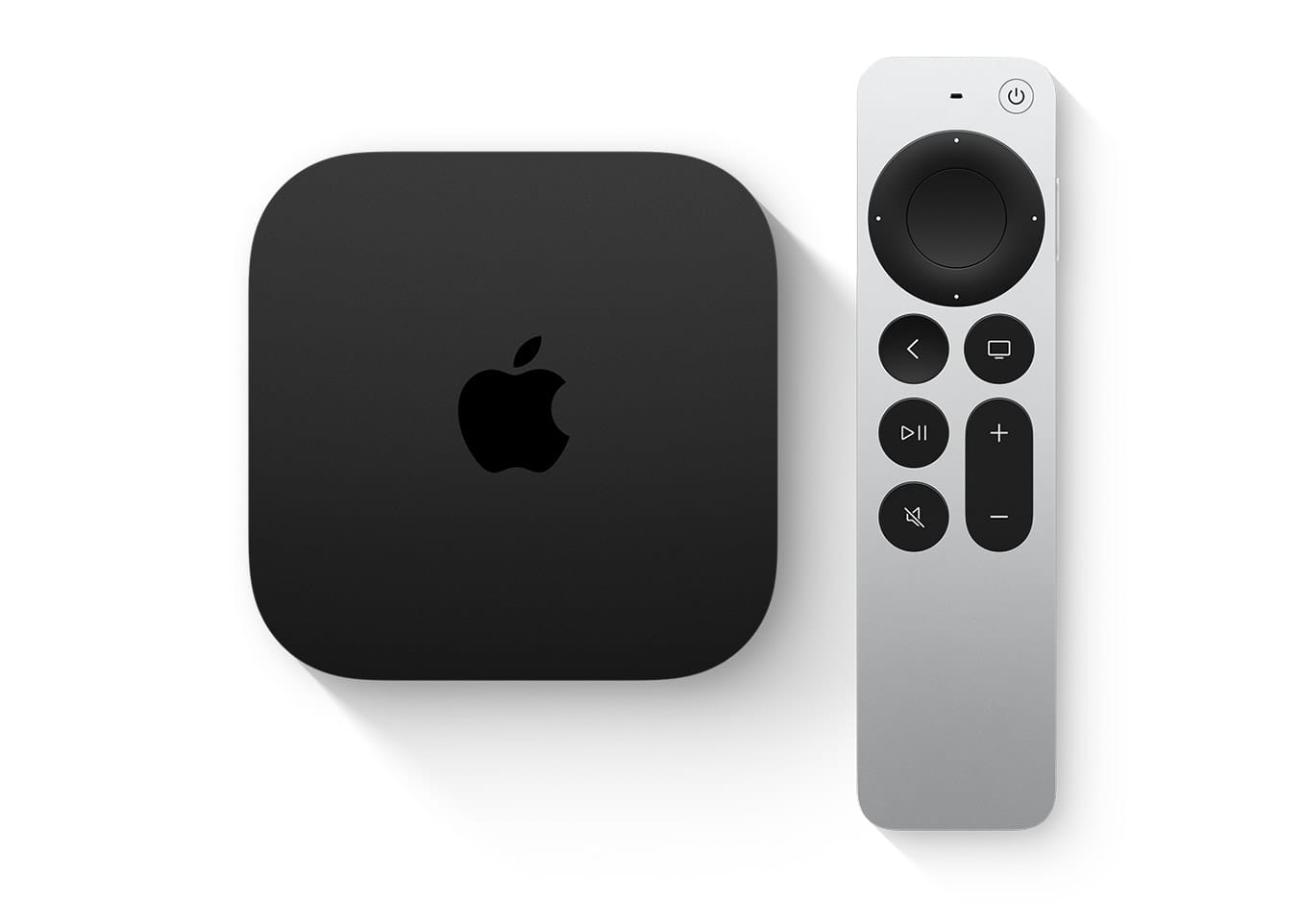
The Siri Remote that ships with the current Apple TV 4K has playback controls that most people discover by accident, if they discover them at all.
During playback, rest your finger on the outer ring of the clickpad until a circular indicator appears on the timeline, then trace your finger clockwise to scrub forward or counterclockwise to scrub backward. This jog wheel gesture provides frame-level precision that the standard left-right swipe cannot match. For coarser navigation, press left or right on the clickpad ring to skip in 10-second increments, or press and hold to fast-forward at 2x, 3x, and 4x speeds.
Double-tapping the clickpad toggles zoom, which fills the screen and eliminates letterbox bars on ultra-wide content. And swiping down on the clickpad during playback opens the info panel, where you can access subtitles, audio track selection, Enhance Dialogue, and on Apple TV Plus content, the InSight feature that identifies actors and music in real time.
If the touch surface feels too sensitive or not sensitive enough, go to Settings, then Remotes and Devices. You can switch between Click and Touch mode (which enables gesture tracking) and Click Only mode (which turns the clickpad into a simple directional pad). Touch Surface Tracking has three speed levels.
HDMI-CEC and the One-Remote Fix
One last setting that is easy to overlook: Settings, then Remotes and Devices, then Control TVs and Receivers. This enables HDMI-CEC, which lets your Siri Remote control your TV's power and volume, automatically switches your TV to the Apple TV input when you press a button, and puts the Apple TV to sleep when you turn off the TV. If you have been juggling two remotes, this is the fix.
According to Apple's technical specifications for Apple TV 4K, the third-generation model (2022) features an A15 Bionic chip, HDMI 2.1, Gigabit Ethernet (on the 128GB model), Wi-Fi 6, and support for 4K Dolby Vision, HDR10, HDR10+, and Dolby Atmos. If you have already set up your Apple TV for gaming, check out the guide to setting up Apple TV for serious gaming in tvOS 26. And for anyone choosing between the 64GB and 128GB models, the Apple TV 4K storage comparison breaks down exactly what the extra storage buys you.
For the Ethernet versus WiFi question: 4K HDR streaming needs roughly 25 Mbps. Both WiFi 6 and Gigabit Ethernet can handle that easily. Where Ethernet wins is consistency. It eliminates buffering caused by WiFi congestion, signal interference, and bandwidth contention from other devices. If your Apple TV doubles as a HomeKit hub and Thread border router (which the Ethernet model does), a wired connection also improves smart home reliability. For most people with a decent router nearby, WiFi is perfectly fine. But if you already have an Ethernet cable near your TV, plugging it in removes one more variable from the equation.

Related Posts
Apple TV+ Has Five Premieres This Month and Your Watchlist Needs All of Them
Mar 04, 2026
Every Apple HomeKit Device That Earns a Spot in Your Smart Home
Mar 03, 2026
Your HomePod Joins the Wrong Wi-Fi Network Until You Fix This One Setting
Mar 03, 2026