
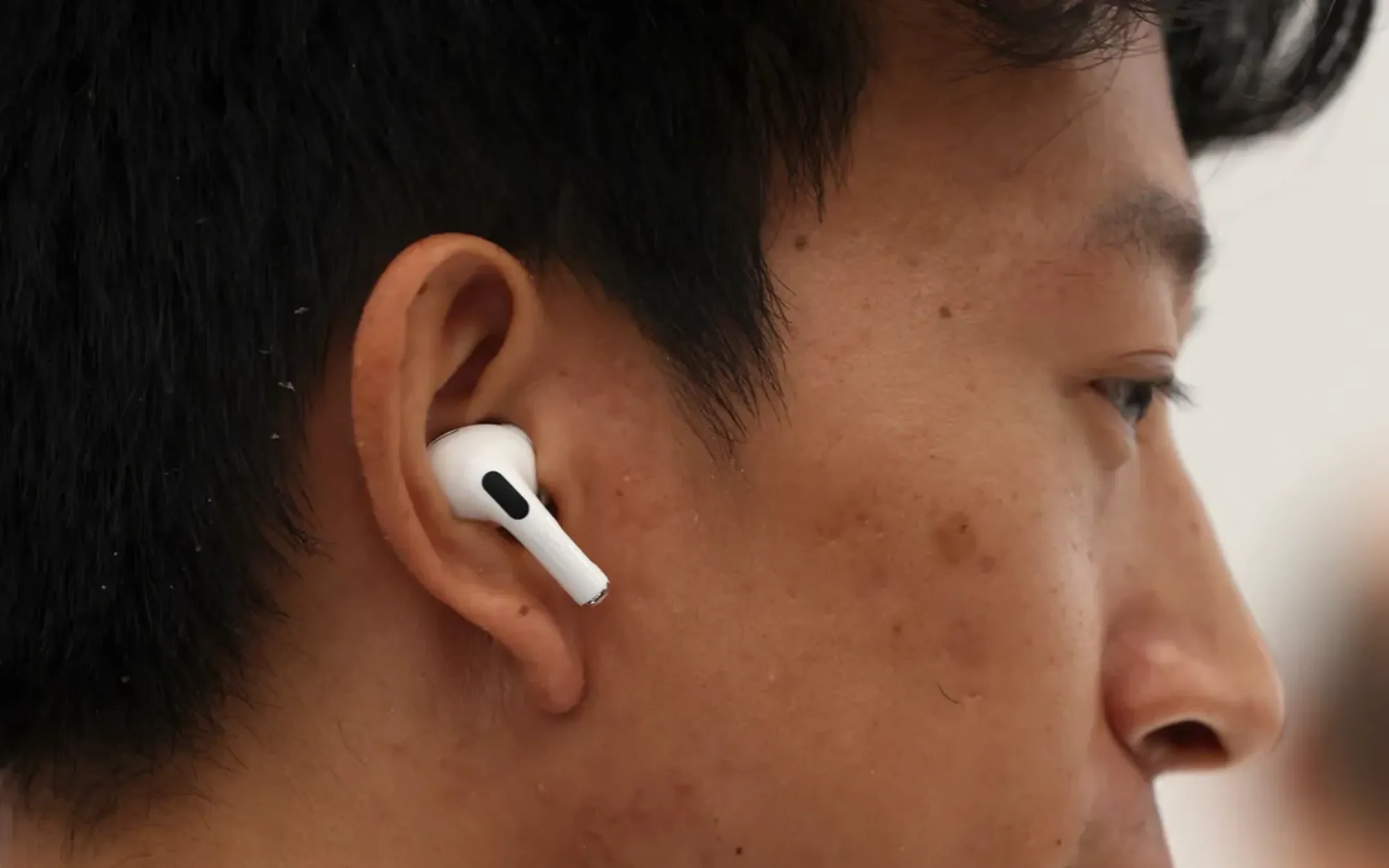

Your AirPods keep disconnecting because iOS 26 is doing exactly what Apple told it to do — switching audio between your devices, pausing when it thinks you removed an earbud, and handing off to your car speakers the moment you start the engine. The problem is rarely hardware. In most cases, it is a setting that is working too well, and the fix takes about thirty seconds once you know which toggle to reach for.
The catch is that there are at least twelve distinct reasons your AirPods might drop connection, and they look identical from the outside. A random pause during a podcast could be Automatic Ear Detection misfiring, Bluetooth interference from a nearby microwave, or your Mac quietly stealing the audio stream because you opened Safari. Each cause has a different fix, and guessing your way through them wastes time you could spend actually listening to something.
I am going to walk through every cause I have been able to confirm in iOS 26.3, starting with the ones that catch the most people and ending with the nuclear options you should only reach for after everything else fails.
 Ad
AdThe Setting That Fixes Half of All Disconnections
Apple calls it Automatic Switching, and it is the single most common reason AirPods seem to disconnect without warning. When you own multiple Apple devices signed into the same Apple Account, your AirPods listen for active audio playback across all of them. Start a YouTube video on your iPad while music is playing through your iPhone, and the AirPods jump to the iPad. From your perspective, the iPhone just lost connection. It didn’t. The AirPods chose to leave.
The fix is buried one tap deeper than most people look. Open Settings, tap Bluetooth, tap the circled info button next to your AirPods name, then tap Connect to This iPhone. Change the selection from Automatically to When Last Connected to This iPhone. That single change tells your AirPods to stay put unless you manually move them.
It does, though, mean you need to repeat this on every Apple device you own — your iPad, your Mac, your Apple TV. Each device has its own version of this toggle. On a Mac, the path is System Settings, then Bluetooth, then the info button next to your AirPods, then Connect to This Mac. If you have ever struggled with pairing AirPods Max across multiple devices, the same Automatic Switching behavior is responsible.
When Your Car Steals Your Audio
This one drove me slightly mad before iOS 26 added a proper fix. You are walking to your car wearing AirPods, listening to a podcast. You start the engine. CarPlay connects. Your podcast suddenly blasts through the car speakers while your AirPods go silent. The audio was not lost — it was rerouted, and iOS 26 treated that as the intended behavior.
Apple finally added a toggle called Keep Audio with Headphones, tucked inside Settings, then General, then AirPlay & Continuity. Turn it on and your AirPods retain the audio stream even when your car’s Bluetooth connects. You can still manually switch to car speakers through Control Center whenever you want, but the default stops being “hand everything to the loudest speaker in range.”
The fact that this setting is off by default is a strange decision. Apple clearly knows the problem exists — they built the solution — but they shipped it disabled, which means most people never find it.
 Ad
AdAutomatic Ear Detection and the Phantom Pause
Every pair of AirPods has optical or infrared sensors that detect when they are sitting in your ears. Pull one out, and audio pauses. Put it back, and audio resumes. The system works well when the sensors are clean and your AirPods fit snugly. It works terribly when earwax builds up on the sensor window, when you wear your AirPods slightly loose, or when you adjust them mid-conversation and your finger briefly blocks the sensor.
The result is what I call the phantom pause: audio stops for no apparent reason, and when you check your iPhone the AirPods still show as connected. The audio just stopped playing. If this happens to you more than once a week, try toggling off Automatic Ear Detection entirely. Go to Settings, tap your AirPods name at the top, and turn off the Automatic Ear Detection switch. If you have already explored the deeper AirPods Pro settings that iOS hides from most users, you know how many useful controls are buried behind that info button.
The tradeoff is real. Without Automatic Ear Detection, your AirPods will keep playing whether they are in your ears or on your desk. Battery life takes a hit. But if the phantom pause is ruining calls and podcasts, it is worth the exchange.
Firmware You Didn’t Know Needed Updating
AirPods receive firmware updates automatically, but the process is so invisible that most people have no idea it is happening — or not happening. Apple does not send a notification. There is no prompt. The update simply installs while your AirPods sit in their case, connected to a device on Wi-Fi, plugged into power. If any one of those conditions is missing, the update never arrives.
To check your current firmware version, open Settings, tap Bluetooth, tap the info button next to your AirPods, and scroll all the way down to the About section. The latest firmware for AirPods Pro 3 as of February 2026 is 8B34. For AirPods Pro 2, it is 8B28. For AirPods 4, look for 8B21. If your number is lower, the update has not reached your pair yet.
To encourage it along: put your AirPods in their case, connect the case to a charger, make sure your iPhone is on Wi-Fi and nearby with Bluetooth enabled, and close the lid. Wait at least thirty minutes. There is no progress bar and no confirmation, but when you reopen the case and check the firmware version again, the number should have changed.
Firmware 8B25 and 8B28 specifically addressed “reduced frequency of unexpected disconnections” on AirPods Pro 2 and AirPods 4 charging cases, so this is not a theoretical fix.
The Bluetooth Interference Nobody Talks About
Bluetooth and Wi-Fi both operate on the 2.4 GHz frequency band. So do microwave ovens, wireless security cameras, cordless phones, and baby monitors. When you are sitting in a coffee shop surrounded by thirty other people’s phones, tablets, and laptops, your AirPods are fighting for airtime on an extremely crowded radio channel. Apple acknowledges this directly in its support documentation for wireless headphone audio cutting out, recommending that you test with locally stored audio instead of streaming to isolate the issue.
The practical fix at home is to switch your Wi-Fi router from the 2.4 GHz band to the 5 GHz band. The 5 GHz band does not overlap with Bluetooth at all, which eliminates the single largest source of interference in most households. If your router broadcasts both bands under the same network name, check the router’s admin settings to see if you can separate them or prioritize 5 GHz for your phone.
In the worst case of a deeply congested environment — a conference hall, an airport terminal — there is not much you can do except stay within ten to fifteen feet of your iPhone instead of wandering to the far end of the room. AirPods work reliably up to about thirty to sixty feet in open space, but walls, metal furniture, and competing signals can cut that range dramatically.
Here is a quick comparison of the most common disconnection causes and their fixes, ranked by how likely each one is to be the culprit.
| Cause | Likelihood | Fix Difficulty | iOS 26 Setting Path |
|---|---|---|---|
| Automatic device switching | Very High | Easy | Settings > Bluetooth > (i) > Connect to This iPhone |
| Automatic Ear Detection misfires | High | Easy | Settings > [AirPods Name] > Automatic Ear Detection |
| CarPlay / speaker audio hijacking | High | Easy | Settings > General > AirPlay & Continuity |
| Outdated firmware | Medium | Easy (passive) | Settings > Bluetooth > (i) > About |
| Bluetooth interference | Medium | Moderate | Switch Wi-Fi router to 5 GHz band |
| Corrupted pairing data | Low | Moderate | Settings > Bluetooth > (i) > Forget This Device |
The iOS 26 Bug That Was Real
Not every disconnection is a setting problem. iOS 26.0 shipped with a genuine Bluetooth bug that caused Wi-Fi and Bluetooth to “occasionally disconnect” on iPhone 17, iPhone Air, and iPhone 17 Pro models. Apple fixed it in iOS 26.0.1. A second wave of complaints hit with iOS 26.1, where users reported audio dropouts, stuttering, and calls jumping back to the phone speaker mid-conversation.
If you are still running anything older than iOS 26.3, update immediately. Open Settings, tap General, tap Software Update, and install whatever is waiting. This is the easiest fix on the list, and it is the one that most troubleshooting guides bury at the bottom when it should be at the top.
How I’d Reset AirPods When Nothing Else Works
If you have tried every toggle above and your AirPods still drop connection, it is time for a full reset. The process differs depending on your model, and Apple changed the method for newer pairs in a way that catches people off guard. If you have already gone through the step-by-step pairing process for any Apple device, you know the drill starts with forgetting the device first.
Start by opening Settings, tapping Bluetooth, tapping the info button next to your AirPods, and tapping Forget This Device. Confirm when prompted. This removes the pairing from your Apple Account.
AirPods with a Physical Setup Button
For AirPods 1st, 2nd, and 3rd generation, and AirPods Pro 1 and Pro 2: place both buds in the charging case and close the lid. Wait thirty seconds. Open the lid, then press and hold the small setup button on the back of the case for about fifteen seconds. The status light will flash amber and then white. When it flashes white, the reset is complete.
AirPods 4 and AirPods Pro 3 — No Button
AirPods 4 and AirPods Pro 3 have no physical setup button at all. Instead, close the lid, wait thirty seconds, then open it. Double-tap the front of the case while the status light is visible. Double-tap again when the light flashes white. Double-tap a third time when it flashes faster. The light will flash amber and then white, confirming the factory reset. The first time I tried this, I tapped too quickly and nothing happened — you need a deliberate, steady rhythm, not a frantic double-click.
AirPods Max
Charge AirPods Max to at least fifty percent first. Then press and hold both the Noise Control button and the Digital Crown simultaneously for fifteen seconds. The LED flashes amber, then white. The white flash means the reset is complete. A full reset removes AirPods Max from Find My and erases all paired devices, so only do this as a last resort.
The Last Resort Before Calling Apple
If a full AirPods reset still does not solve the problem, try resetting your iPhone’s network settings. This is the heavy hammer: it erases every saved Wi-Fi password, every Bluetooth pairing, and every VPN configuration on your phone. Go to Settings, then General, then Transfer or Reset iPhone, then Reset, then Reset Network Settings. Enter your passcode and confirm.
After the reset, you will need to re-enter every Wi-Fi password and re-pair every Bluetooth device. But it rebuilds the entire Bluetooth connection database from scratch, which resolves corruption that no amount of toggling can fix. If your AirPods still sound generic or oddly flat after reconnecting, run the Personalized Spatial Audio calibration scan to restore your custom audio profile.
If none of these fixes resolve the disconnection, the issue is likely hardware. Contact Apple Support or visit an Apple Store. AirPods covered under warranty or AppleCare+ can be replaced, and Apple has a track record of swapping individual buds rather than requiring you to replace the entire set.

Related Posts
AirPods Max and Sony WH-1000XM5 Go Head to Head for Your Ears
Mar 07, 2026
Your AirPods Max Are Collecting Grime You Cannot See
Mar 04, 2026
Your AirPods Have Dozens of Hidden Settings on Your iPhone — Here Is Every One
Mar 03, 2026